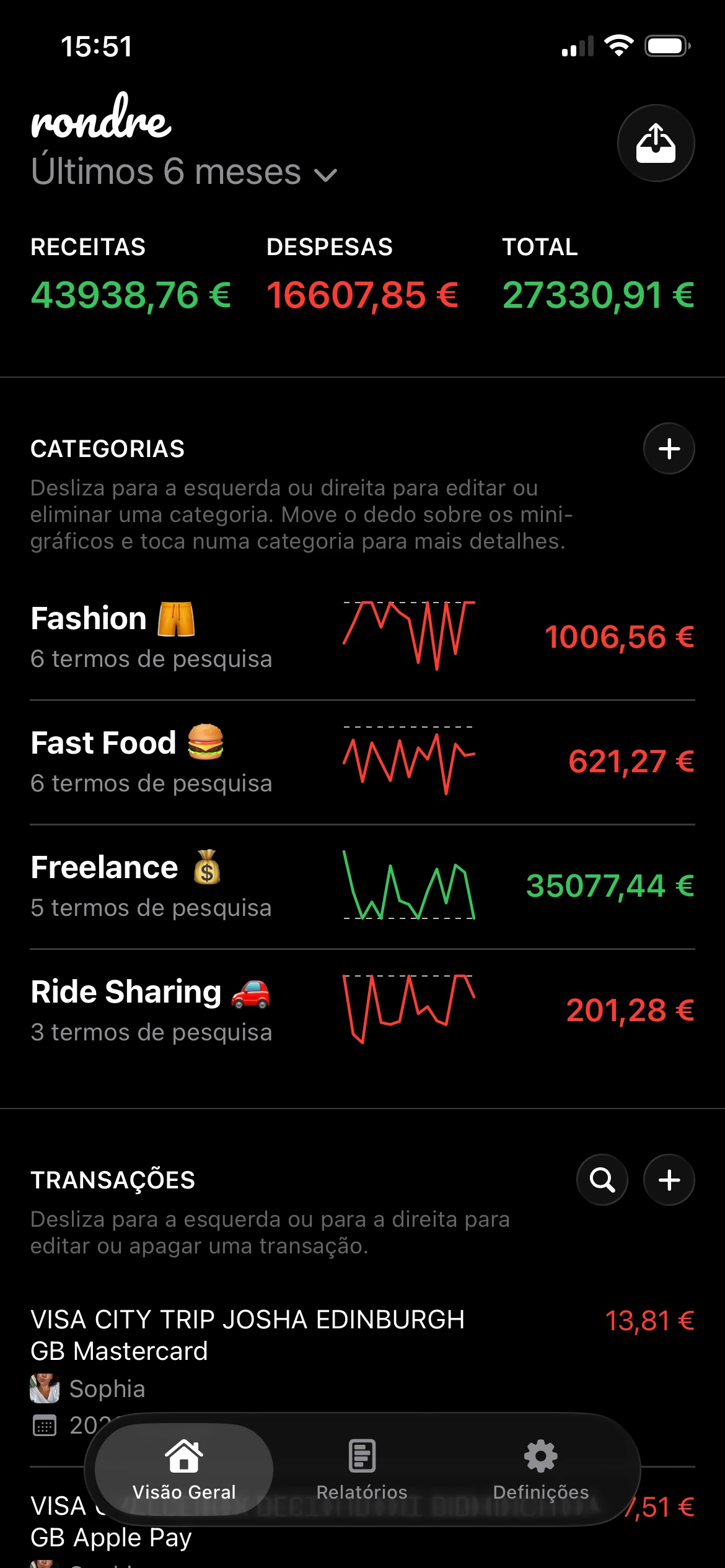
Um padrão familiar aparece nas contas da Sparda-Bank Baden-Württemberg. As transações ficam dentro do portal bancário, os extratos acumulam-se como PDFs, e as despesas mensais continuam a parecer pouco claras. A conta em si é fiável, mas a visão diária do dinheiro muitas vezes não é.
Essa lacuna importa ainda mais numa banco desta dimensão. A Sparda-Bank Baden-Württemberg é um interveniente significativo no retalho bancário na Alemanha, com ativos totais de 14971,83 milhões EUR, uma quota de mercado de 0,16% e a posição de 65.º maior banco da Alemanha, segundo o perfil bancário da TheBanks.eu para a Sparda-Bank Baden-Württemberg. Um banco tão estabelecido gere as finanças do dia a dia de uma base de clientes muito grande, o que torna importante acertar nos workflows práticos de exportação e acompanhamento.
Índice
- Ligar a sua conta Sparda Bank a um tracker moderno
- Localizar e exportar os seus extratos de conta Sparda
- Importar os seus ficheiros bancários para rondre
- Automatizar as suas finanças com categorias inteligentes e livros partilhados
- Dicas profissionais para um workflow fluido entre Sparda e rondre
- Resolver problemas comuns de importação de dados Sparda
Ligar a sua conta Sparda Bank a um tracker moderno
A Sparda Baden-Württemberg foi construída em torno de clientes particulares, não de workflows complexos de tesouraria empresarial. O seu contexto ajuda a explicar isso. O perfil da própria banco descreve as suas raízes como uma instituição de autoajuda para funcionários dos serviços ferroviários, postais e de navegação a vapor, e coloca-a dentro da rede Sparda de 11 bancos focada no retalho bancário, como mostrado no perfil empresarial da ZoomInfo para a Sparda-Bank Baden-Württemberg. Essa estrutura orientada para membros é boa para o banking do dia a dia, mas também significa que muitos clientes ainda gerem dinheiro através de extratos convencionais em vez de um fluxo moderno de análise.
Para orçamentação, esse padrão antigo cria fricção rapidamente. Um extrato PDF é bom para verificar uma cobrança. É fraco para identificar despesas repetidas, pesquisar comerciantes ao longo de vários meses ou combinar despesas pessoais e do agregado familiar numa vista limpa.
É por isso que a ponte entre banco e tracker importa. O workflow prático não é “iniciar sessão mais vezes”. É exportar, importar, categorizar, rever.
Porque o portal bancário sozinho normalmente não chega
As pessoas não precisam de mais funcionalidades bancárias. Precisam de menos fricção depois de o dinheiro já se ter movimentado.
Um portal bancário gere saldos, transferências, cartões e autenticação. Um tracker gere padrões. São tarefas diferentes. Tentar usar um como se fosse o outro normalmente leva a um destes problemas:
- Os extratos tornam-se arquivos: os ficheiros são descarregados e esquecidos.
- A pesquisa continua fraca: encontrar todas as transações de supermercado, renda ou seguro ao longo do tempo demora demasiado.
- O dinheiro partilhado fica confuso: casais muitas vezes dividem informação entre logins separados e capturas de ecrã.
- O trabalho de categorias nunca começa: se cada revisão parecer manual, não acontecerá de forma consistente.
Regra prática: mantenha o banco para operações bancárias e use um tracker para análise.
O que funciona melhor na prática
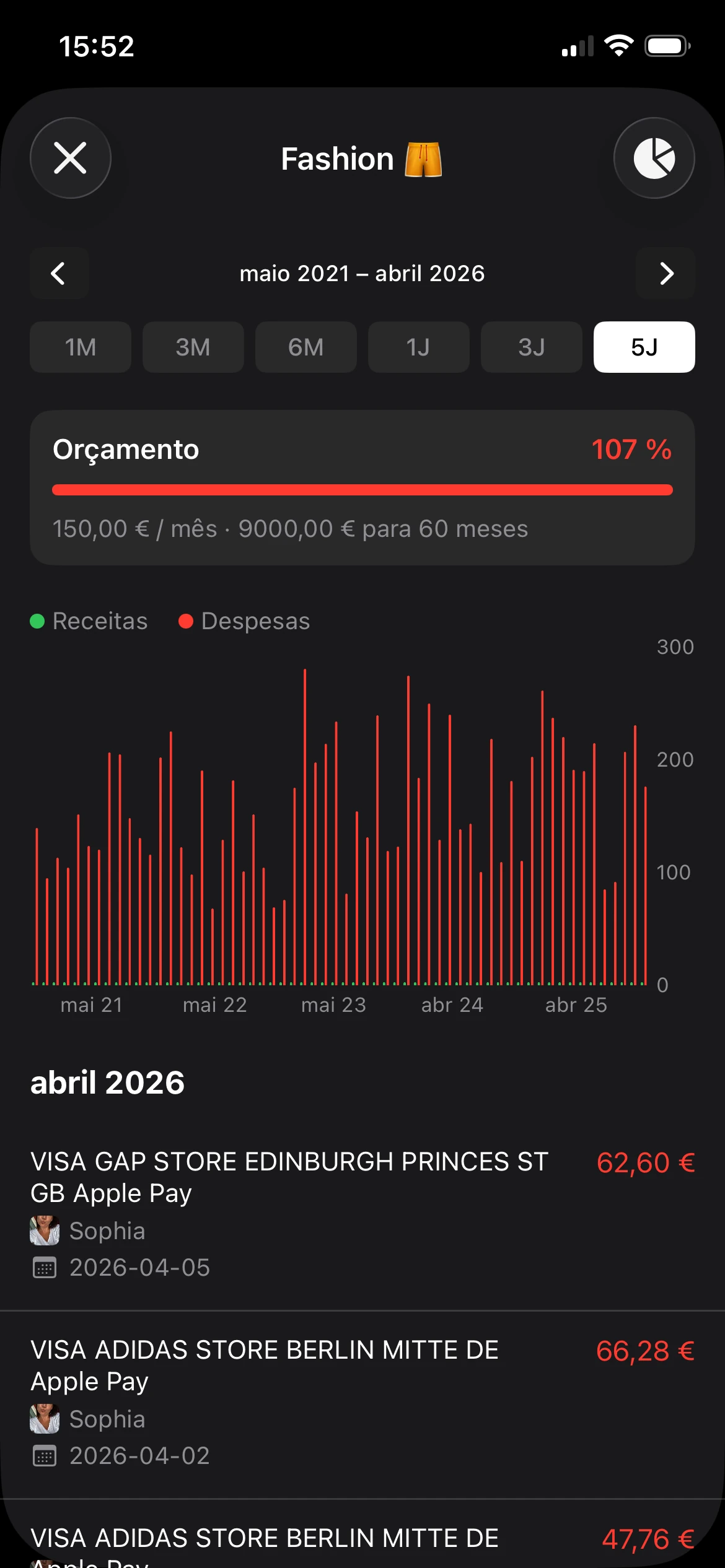
A configuração eficiente é simples. Exporte um ficheiro de extrato da Sparda-Bank Baden-Württemberg, leve-o para um tracker privado e depois deixe que as categorias façam a maior parte do trabalho de ordenação. Isto é especialmente útil para utilizadores de iPhone que querem uma rotina leve em vez de um projeto de folha de cálculo.
O maior ganho normalmente não é “melhor disciplina orçamental”. É menor resistência. Quando um ficheiro pode ser colocado numa aplicação dedicada de acompanhamento e pesquisado instantaneamente, rever despesas torna-se algo que um agregado familiar continua a fazer.
Localizar e exportar os seus extratos de conta Sparda
Retirar o ficheiro da Sparda-Bank Baden-Württemberg é a parte que determina se o resto parece fluido ou irritante. A boa notícia é que os dados de login são claros. No guia Future Banking da própria banco, utilizadores de primeira vez precisam de selecionar Sparda-Bank Baden-Württemberg durante o registo e iniciar sessão com um Sparda-NetKey e um PIN online de seis dígitos, como descrito no guia Future Banking em inglês da banco.

O que preparar antes de iniciar sessão
Antes de abrir o portal ou a aplicação, ajuda decidir duas coisas:
O intervalo de datas
- um mês para uma verificação rápida
- um trimestre para limpar tendências
- um ano completo se as categorias estiverem a ser reconstruídas do zero
O tipo de ficheiro
- CSV se o objetivo for importar e ordenar transações
- PDF se o objetivo for arquivo, referência ou verificação da formatação do extrato
Se ambos estiverem disponíveis, CSV é normalmente o melhor ficheiro de trabalho. PDF continua a ser útil como cópia de segurança porque preserva o extrato exatamente como foi emitido.
Uma dica pequena mas importante é exportar por conta, não por memória. Se alguém tiver uma conta à ordem, movimentos de poupança e entradas relacionadas com cartão, mantenha cada período de exportação claro. Ficheiros misturados criam limpeza evitável mais tarde.
Um workflow prático de exportação
Os bancos mudam rótulos e layouts, por isso os nomes exatos dos menus podem variar ligeiramente. Ainda assim, o workflow tende a seguir o mesmo caminho.
- Inicie sessão com segurança: use o portal web ou a aplicação móvel com o NetKey e o PIN de seis dígitos já mencionados.
- Abra a vista da conta: selecione a conta cujas transações precisam de ser acompanhadas.
- Encontre extratos ou histórico de transações: procure termos como extratos de conta, movimentos, lançamentos ou histórico de transações.
- Defina o filtro de datas: escolha um período personalizado em vez de aceitar o padrão se for necessário um mês completo ou um ano.
- Procure opções de exportação ou download: a melhor escolha costuma ser primeiro CSV, depois PDF.
- Guarde o ficheiro claramente: dê-lhe um nome óbvio, como conta-a-ordem-2025-01-a-2025-03.
O desktop é muitas vezes mais fácil para isto do que o telemóvel, porque filtros de data e controlos de exportação são mais fáceis de inspecionar. O telemóvel funciona, mas algumas aplicações bancárias são melhores para visualizar do que para exportar. Se a aplicação parecer apertada, mude para o portal completo no navegador em vez de lutar com ela.
Um nome de ficheiro claro poupa tempo mais tarde. “statement.pdf” não ajuda quando há seis deles.
Para quem está a comparar fluxos de acesso bancário entre instituições alemãs, este guia de login do Baader Bank é um contraste útil, porque destaca quanto a experiência depende do design do portal de cada banco.
CSV versus PDF para acompanhamento
Uma comparação curta torna a decisão mais fácil:
| Formato | Melhor para | O que normalmente funciona bem | Problema comum |
|---|---|---|---|
| CSV | importar para um tracker | linhas pesquisáveis, categorização mais fácil | cabeçalhos, separadores ou codificação podem precisar de limpeza |
| referência e arquivo | mantém o layout original da banco | menos flexível para ordenar e pesquisar em massa |
Se apenas PDF estiver disponível para uma vista de conta específica, ainda vale a pena descarregar. Mas se ambas as opções aparecerem, CSV normalmente faz o trabalho mais rapidamente.
Importar os seus ficheiros bancários para rondre
Depois de o ficheiro ser descarregado, o passo seguinte deve parecer mais curto do que a exportação. Esse é o objetivo. A banco gere autenticação e acesso à conta. O tracker gere visibilidade.

Escolha primeiro o ficheiro certo
Se houver tanto um CSV como um PDF para o mesmo período, comece com CSV. Normalmente dá linhas de transações mais limpas e torna a edição menos provável. Mantenha o PDF por perto apenas se algo precisar de ser verificado contra o extrato original.
Antes de importar, verifique três coisas:
- Cobertura de datas: certifique-se de que o ficheiro inclui o mês ou trimestre pretendido.
- Duplicados: evite importar intervalos sobrepostos, a menos que a duplicação seja intencional e possa ser limpa.
- Clareza do ficheiro: se vários exports foram descarregados, escolha aquele com o nome mais claro e o período mais completo.
Também é aqui que muitas pessoas complicam demasiado as coisas. O objetivo não é aperfeiçoar o ficheiro do extrato. O objetivo é colocar histórico de transações utilizável num formato que possa ser pesquisado e categorizado.
Importar sem criar confusão
Dentro da aplicação, a rotina mais fluida é normalmente:
- Abra o livro onde as transações devem ficar.
- Escolha a opção de importação.
- Selecione o CSV ou PDF descarregado a partir de Ficheiros.
- Reveja como aparecem datas, montantes e descrições.
- Confirme a importação apenas depois de uma verificação rápida de coerência.
Essa verificação rápida importa. Se as datas parecerem invertidas, débitos aparecerem como créditos ou descrições de transações estiverem cortadas, pare aí e ajuste antes de importar mais ficheiros.
Um indicador prático é simples: depois da importação, um utilizador deve conseguir percorrer, pesquisar e reconhecer comerciantes imediatamente. Se a lista de transações parecer desordenada, o ficheiro provavelmente precisa primeiro de uma pequena limpeza.
Para leitores que querem uma visão mais ampla do workflow pós-importação, este guia de acompanhamento de despesas combina bem com o passo de importação porque se concentra no que fazer quando as transações brutas já estão visíveis.
Não importe um histórico inteiro de uma vez se o primeiro ficheiro ainda não foi verificado. Um mês correto é melhor do que um ano confuso.
Automatizar as suas finanças com categorias inteligentes e livros partilhados
A importação é a parte mecânica. A categorização é onde o ficheiro começa a tornar-se útil. Sem categorias, uma lista de transações é apenas um extrato bancário mais limpo. Com categorias, torna-se um mapa de despesas.

Criar categorias a partir do texto real das transações
As melhores categorias vêm da forma como o banco escreve as descrições das transações, não de teoria orçamental abstrata.
Se um export Sparda mostra repetidamente a mesma cadeia de supermercados, referência do senhorio, seguradora ou serviço de streaming na linha de texto, use esses termos diretamente nas regras de categoria. Isso funciona melhor do que etiquetas amplas como “compras” ou “faturas”, porque a regra tem algo concreto para corresponder.
Uma configuração inicial sólida muitas vezes inclui:
- Habitação: renda, serviços, encargos do edifício
- Supermercado: nomes de supermercados e serviços de entrega
- Transporte: comboio, combustível, estacionamento, transporte local
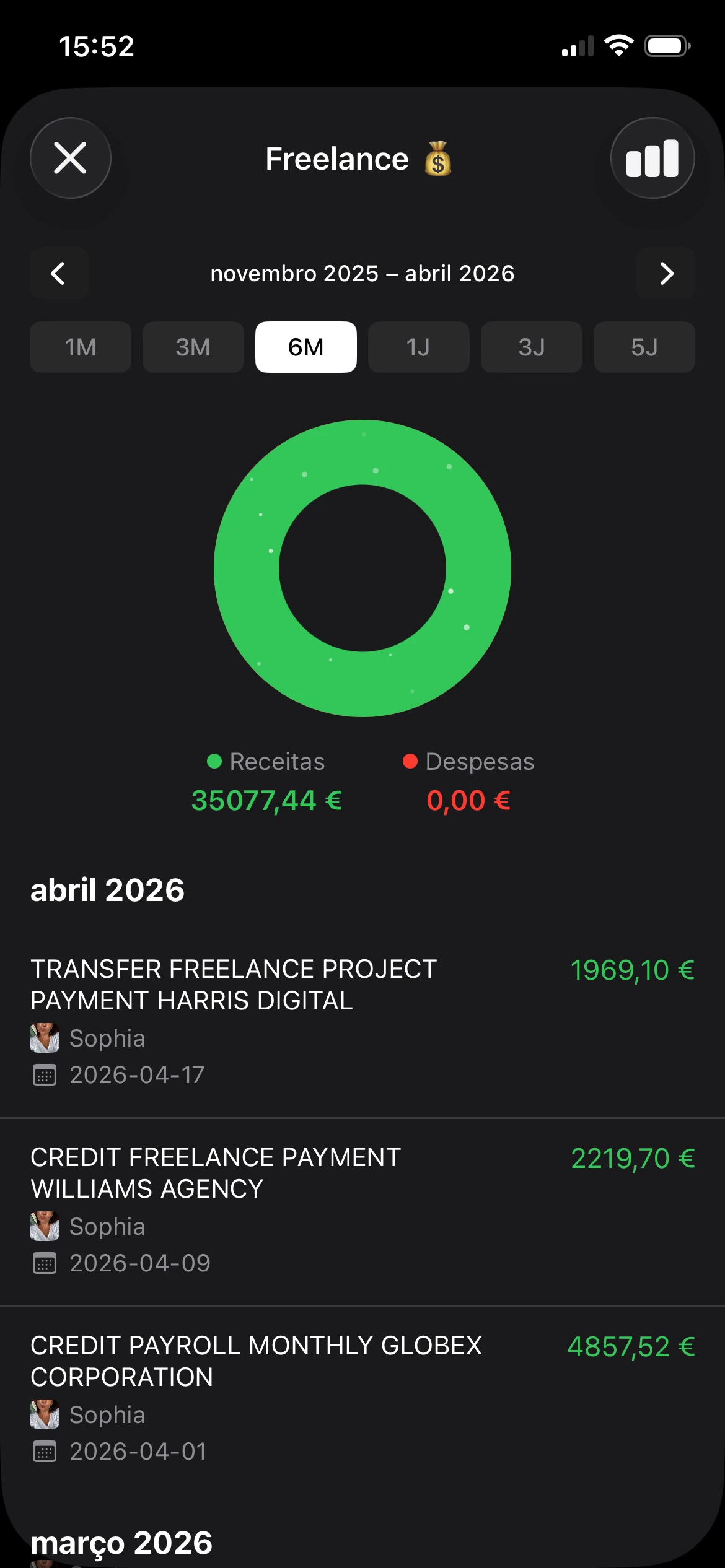
- Rendimento: nomes de pagadores de salário ou clientes freelance
- Subscrições: comerciantes digitais recorrentes
- Despesas familiares: escola, cuidados infantis, farmácia, lojas domésticas
Nem todos os comerciantes pertencem a apenas uma categoria. Esse é o compromisso. Um marketplace pode incluir supermercado numa semana e eletrónica na seguinte. Em casos assim, termos de pesquisa mais específicos funcionam melhor do que regras aplicadas ao comerciante inteiro.
Para ideias de categorias que são mais fáceis de adaptar do que um ecrã em branco, este guia de categorias de despesas é uma referência prática.
Configurar uma vista partilhada do agregado familiar
Casais e famílias normalmente encontram o mesmo problema. Uma pessoa tem a conta da hipoteca ou renda. A outra trata do supermercado ou dos cuidados infantis. Cada pessoa vê parte da imagem, e ninguém vê o mês inteiro de forma limpa.
Um livro partilhado resolve isso se for usado com alguns limites:
- Importe os ficheiros de cada pessoa para o mesmo espaço partilhado quando o objetivo é orçamentação do agregado familiar.
- Mantenha despesas apenas pessoais separadas se uma fusão completa criaria ruído ou fricção.
- Concordem cedo sobre regras de categoria para que “casa”, “crianças” e “transporte” signifiquem a mesma coisa para ambas as pessoas.
Isto não é apenas conveniência. Evita conversas repetidas sobre se um pagamento pertencia a uma pessoa ou ao agregado familiar. Quando ambos os fluxos de extratos estão organizados da mesma forma, a revisão torna-se muito mais rápida.
Finanças partilhadas funcionam melhor quando as regras são aborrecidas. Nomes consistentes e categorias estáveis vencem sempre sistemas inteligentes.
Um bom workflow partilhado também deixa espaço para livros separados. Um para o fluxo de caixa do agregado familiar. Um para despesas pessoais. Um para uma atividade paralela, se necessário. Essa separação mantém as sessões de revisão mais curtas e menos emocionalmente carregadas.
Dicas profissionais para um workflow fluido entre Sparda e rondre
As configurações mais limpas normalmente não são as mais avançadas. São aquelas que removem pequenas fontes de fricção antes de se acumularem.

Proteger os ficheiros exportados
Um export bancário não é apenas uma folha de cálculo. Pode conter nomes, referências de conta, saldos, notas de transação e outros detalhes pessoais. Trate-o como documentação financeira sensível.
Alguns hábitos fazem uma grande diferença:
- Guardar brevemente: mantenha ficheiros exportados apenas pelo tempo necessário para importação e verificação.
- Nomear claramente, mas sem exagero: um intervalo mensal é útil; etiquetas pessoais completas normalmente não são.
- Evitar partilha casual: não envie ficheiros brutos pelo chat ou grupo errado.
- Apagar sobras: remova downloads duplicados depois de confirmar que a importação funcionou.
Se um PDF for guardado para arquivo, guarde-o intencionalmente. Se um CSV for apenas uma ponte para a aplicação, raramente há razão para o deixar ficar para sempre em Downloads.
Tornar a rotina leve
O maior ponto de falha não é técnico. É o adiamento. Quando as importações são adiadas durante meses, a limpeza torna-se mais difícil e as categorias começam a desviar-se.
Uma rotina mais leve funciona melhor:
- Verificações semanais: melhores para pessoas com muitos pagamentos por cartão ou rendimento variável.
- Importações mensais: boas para salários, renda e despesas padrão do agregado familiar.
- Atualizações trimestrais: viáveis, mas apenas se os ficheiros forem nomeados e guardados cuidadosamente.
Ciclos mais curtos também ajudam a detetar problemas mais cedo. Um export danificado, um mês duplicado ou uma descrição estranha de comerciante é mais fácil de corrigir quando o ficheiro ainda está fresco.
Uma checklist útil é assim:
| Hábito | Porque ajuda |
|---|---|
| Usar um único padrão de nomes | torna importações posteriores mais fáceis de identificar |
| Importar por ordem de data | reduz sobreposição e duplicação |
| Rever categorias imediatamente | apanha correspondências erradas antes de se espalharem |
| Manter um extrato de backup | útil se uma transação precisar de verificação manual |
Resolver problemas comuns de importação de dados Sparda
Mesmo um workflow cuidadoso pode falhar na fase do ficheiro. A maioria dos problemas não é dramática. Normalmente caem numa de três categorias: formatação, acesso ou etiquetas de transação confusas.
Quando o ficheiro importa mal
Se a lista importada parecer errada, o sintoma normalmente aponta para a causa.
- Datas aparecem misturadas: a aplicação pode estar a ler dia e mês de forma diferente do esperado.
- Montantes invertem direção: sinais de débito e crédito podem precisar de verificação antes de confirmar a importação.
- Descrições parecem cortadas ou fundidas: o separador CSV ou a codificação podem estar incorretos.
- Linhas deslocam-se para colunas erradas: linhas de cabeçalho ou linhas extra de metadados podem estar a interferir.
A correção prática é inspecionar o ficheiro bruto antes de tentar novamente. Abra o CSV numa vista simples de tabela e veja se cada linha é consistente. Uma coluna de data, uma coluna de descrição, uma coluna de montante. Se a estrutura em si parecer confusa, limpe ligeiramente o ficheiro antes de outra tentativa de importação.
Um problema relacionado com PDF é diferente. Se o texto não puder ser lido corretamente porque o extrato é muito baseado em imagem ou estruturado de forma inconsistente, um export CSV é normalmente o melhor caminho se o portal bancário o oferecer.
Quando o acesso bancário é interrompido
Esta parte importa mais do que muitas pessoas esperam. Durante trabalhos de migração digital, o acesso pode tornar-se temporariamente pouco fiável. Reportagens recentes sobre a mudança da Sparda-Bank Baden-Württemberg para a Atruvia assinalaram uma interrupção temporária que afetou online banking, suporte telefónico e por e-mail, agências, caixas automáticas e até alguns pagamentos com cartão, conforme relatado pela cobertura da IT Finanzmagazin sobre a migração para a Atruvia.
Esse tipo de interrupção muda completamente a melhor prática. Antes de qualquer alteração de sistema anunciada, clientes devem exportar extratos recentes, guardar PDFs necessários e anotar quaisquer pagamentos urgentes de saída que não possam esperar. Salário, renda e transferências sensíveis ao tempo são as prioridades óbvias.
Outro ponto de confusão são identificadores de pagamento. Para transferências nacionais alemãs, o IBAN é aquilo em que os utilizadores normalmente confiam hoje, e o BLZ está integrado nele. Dados independentes de referência bancária para a entrada de Estugarda da Sparda-Bank Baden-Württemberg listam BLZ 60090800, o que ajuda a explicar porque códigos antigos ainda podem aparecer em registos, mesmo que os utilizadores hoje trabalhem sobretudo com IBANs, como mostrado nos dados de referência da bank.codes para a Sparda-Bank Baden-Württemberg.
Para transferências internacionais, a chave de encaminhamento volta a ser diferente. O SWIFT/BIC principal da Sparda-Bank Baden-Württemberg é SBBWDEST, com DE a indicar Alemanha e Stuttgart listada como cidade. Transferências transfronteiriças continuam a precisar do IBAN ou número de conta do destinatário juntamente com esse código, segundo a entrada SWIFT da Open Banking Tracker para a banco.
Se uma referência de pagamento incluir dados bancários alemães antigos, isso não significa automaticamente que algo esteja errado. Muitas vezes reflete apenas como a transação foi registada ou encaminhada.
Quando o acesso está indisponível e um ficheiro não pode ser exportado, o movimento mais seguro é evitar suposições. Espere que o acesso bancário estabilize e depois exporte o período em falta num único lote limpo em vez de o reconstruir de memória.
Um próximo passo prático é simples. Exporte um extrato recente da Sparda-Bank Baden-Württemberg, importe-o para rondre e crie apenas três categorias inteligentes que correspondam ao texto real das transações desse ficheiro. Essa única passagem normalmente basta para transformar extratos dispersos num sistema fácil de manter.