A lot of people arrive at the Baader Bank login page only after hitting a dead end somewhere else. The broker app shows a balance, but not the document needed for taxes. A monthly statement is missing. A transfer or securities transaction needs a closer look. That's usually when it becomes clear that the actual account sits behind Baader Bank's own client portal, not just the partner platform's interface.
That can feel more complicated than it should. But once the login path is clear, it becomes much easier to get what's needed, download records, and keep financial paperwork organized instead of scattered across inboxes and apps.
Table of Contents
- First Things First Your Baader Bank Account
- The Direct Path to Your Baader Bank Login
- How to Regain Access If You Forget Your PIN
- Fixing Common Baader Bank Login Errors
- Essential Security Habits for Your Account
- Exporting Statements to Track Your Finances
First Things First Your Baader Bank Account
Baader Bank isn't a small background service bolted onto an investing app. According to Baader Bank's company information, it is one of the leading European partners for trading and banking services, operates with a full banking license, is active mainly in Germany, Austria, and Switzerland, supports direct trading from 7:30 AM to 11:00 PM, and is responsible for pricing over 800,000 securities.
That matters because the portal's stricter login flow starts to make sense once the account is seen for what it is. This is a regulated banking environment, not a casual consumer dashboard with an email address and a one-tap reset link.
Why users often have a Baader Bank portal without realizing it
Many customers meet Baader Bank through a partner platform first. The investing app handles the day-to-day experience, but the actual banking records, statements, and account-level documents may sit inside the Baader Bank client portal.
That's why the Baader Bank login often becomes important at very practical moments:
- Statement retrieval: tax documents, monthly statements, or account records may be easier to find there.
- Transaction review: booked items can be checked against what a broker app displays.
- Record keeping: downloaded files can be stored and categorized outside the broker ecosystem.
Practical rule: If a partner platform shows the portfolio but not the paperwork needed for bookkeeping or tax prep, the Baader Bank portal is usually the next place to check.
Why access matters beyond logging in
Getting into the portal is only the first move. The more useful step is turning bank data into something readable and searchable in a personal system that isn't locked inside a financial institution's interface.
For people trying to build a clearer monthly overview, a simple habit helps. Download statements, review them, and move the important entries into a tracker. A basic guide to how to track expenses can help turn those records into something usable instead of letting them pile up unread.
The Direct Path to Your Baader Bank Login
The safest login route is the boring one. Open the official Baader Bank portal directly in the browser, verify the domain, then sign in. Don't start from an email link, a text message, or a forwarded message from anyone claiming there's an urgent account issue.

What credentials are actually needed
For the Baader Bank client portal, the required login details are a User ID and a PIN. Scalable Capital's help guidance for the portal explains that the User ID is the first seven digits of the account number, and that the account number can be found on monthly statements in the customer mailbox, as described in Scalable Capital's Baader Bank portal login help.
This is the detail that trips people up most often. Many users try an email address, broker username, or full account number. That usually doesn't work if the portal expects only those first seven digits as the User ID.
A clean checklist looks like this:
- Open the official portal directly.
- Enter the User ID, using the first seven digits of the account number.
- Enter the PIN linked to the bank portal.
- Complete any additional confirmation step requested by the portal or the bank's authentication flow.
Where Baader2FA fits in
Baader Bank also uses the Baader2FA app as part of its authentication setup. The app's public description says it's used both for logging in and for authorizing transactions, with optional fingerprint or face recognition available through the device, as shown on the Baader2FA App Store page.
That's an important distinction. Logging in and authorizing money-related actions aren't always the same event. In practice, a user may enter portal credentials in the browser, then confirm the session or a later action through the app.
The smoothest setup is usually browser for account access, phone for confirmation. Problems start when those two pieces stop matching, especially after a phone change.
What works and what usually fails
A few patterns are predictable.
- Works well: going to the bank portal manually, using the statement to verify the correct account number, and keeping the authentication phone nearby.
- Usually fails: guessing the User ID, mixing up partner-platform credentials with Baader Bank portal credentials, or trying to complete a login while the 2FA device isn't available.
- Often overlooked: checking whether the portal is asking only for login access or also for transaction authorization.
Users who treat the portal like a standard retail app often waste time. Users who treat it like a regulated banking portal usually get in faster.
How to Regain Access If You Forget Your PIN
Forgotten PINs are annoying, but the reset path is more structured than many users expect. The key is having the right identity details ready before starting.

What to prepare before starting
For Baader Bank portal access, PIN reset requires the User ID plus date of birth, based on the same login guidance referenced earlier through the partner help material.
That means the reset process isn't built around a simple email inbox recovery flow. It's tied to account metadata. If the User ID isn't handy, the first task is finding the account number on the monthly statement and identifying the correct first seven digits.
Keep these ready:
- User ID: derived from the account record, not from a general app login
- Date of birth: entered exactly as requested
- Access to account documents: helpful if the User ID needs to be rechecked
- Current phone setup: useful if the account later asks for app-based confirmation
A calm recovery sequence
A practical order helps reduce mistakes.
First, stop retrying random PINs. Repeated attempts often make a simple memory lapse turn into a lockout problem.
Second, use the portal's recovery path and enter the requested identity details carefully. The common mistake here is using the wrong identifier, especially when someone has both a broker login and a bank portal login.
A short pause usually saves more time than another rushed login attempt.
Third, once new access details are issued or the recovery process moves forward, test the login in a normal browser session with no autofill interference. Saved credentials from another platform can automatically reinsert the wrong value.
If recovery still doesn't work, the best fallback is to use the official support options available through Baader Bank's own portal environment rather than searching for contact details from random web results.
Fixing Common Baader Bank Login Errors
Most Baader Bank login issues come from identity mismatches, stale browser data, or problems around the separate confirmation step. The message on screen is often vague, but the cause usually isn't.
Common Login Issues and Solutions
| Error Message / Symptom | Likely Cause | How to Fix It |
|---|---|---|
| Invalid credentials | Wrong User ID format, wrong PIN, or copied credentials from a partner app | Re-enter the User ID carefully. Check whether the first seven digits of the account number were used rather than the full number or an email-based login. |
| Login page keeps refreshing | Browser cache, autofill conflict, or blocked session cookies | Open a private browsing window, type the credentials manually, and disable autofill for that attempt. |
| 2FA approval doesn't appear | Baader2FA app isn't active on the current device, notifications are delayed, or the wrong phone is being checked | Open the Baader2FA app directly, confirm the device is the one tied to the account, and retry the login after checking the app rather than waiting only for a push alert. |
| Account appears locked | Too many failed attempts or an interrupted recovery flow | Stop further login tries and use the PIN recovery path with the correct User ID and date of birth. |
| Statement or mailbox access is missing after login | Logged into the wrong portal area or using a partner platform instead of the Baader Bank client portal | Return to the official client portal and look for account documents or mailbox sections rather than relying on the broker app view. |
| Login works on one device but not another | Old saved credentials, outdated browser session, or mobile browser restrictions | Clear the old session on the failing device and try a direct login from a current browser version. |
The three mistakes that waste the most time
The first is entering the wrong identifier. People often assume the portal wants whatever username they use with their broker.
The second is fighting the browser. Password managers and autofill tools are helpful until they keep injecting outdated credentials into a banking login form.
The third is treating 2FA as optional troubleshooting noise instead of part of the login chain. If the app side isn't ready, the web side may never complete properly.
The fastest fix is usually to simplify the setup. One browser, one confirmed User ID, one deliberate login attempt.
Essential Security Habits for Your Account
Most banking security advice sounds repetitive until an account problem happens. Then the basics suddenly matter a lot. With Baader Bank, the single most important habit is simple: use the official portal directly and verify the address before entering anything.
Baader Bank explicitly warns users to check the login URL and avoid opening links from emails, and says the safest method is to go directly to the official portal, as stated on the official Baader Bank login page.

Habits worth treating as non-negotiable
A secure setup doesn't need to be fancy. It needs to be consistent.
- Type the portal address directly: this cuts down the chance of landing on a phishing copy.
- Keep the 2FA device under control: if the phone changes, breaks, or loses access, login friction rises fast.
- Avoid shared or public devices: banking sessions should stay on devices the account holder controls.
- Review account activity regularly: not because something is always wrong, but because delayed checks make issues harder to untangle.
The trade-off most users accept too quickly
Convenience tools can create risk. Saved logins, copied links, and rushed approval taps save seconds but increase the odds of approving the wrong thing or entering credentials on the wrong site.
That's why simple, private financial organization matters too. A separate tool for reviewing downloaded statements can reduce the need to keep returning to the banking portal for every small question. For readers comparing privacy-focused options, this overview of a personalized finance app is a useful starting point.
Security gets stronger when banking is used for banking, and financial review happens somewhere calmer and easier to search.
What suspicious activity often looks like
Fraud attempts rarely arrive with obvious warning labels. They often look like urgency, routine maintenance, or a request to “confirm” a login.
Be careful with:
- Unexpected emails: especially those pushing immediate action
- Redirects after clicking a message link: legitimate portals shouldn't require guesswork
- Strange prompts: if the portal flow looks different from normal, stop
- Approval requests in the 2FA app that weren't initiated by the user: deny them and review access immediately
Exporting Statements to Track Your Finances
You log in because you need one thing. A statement, a tax document, or a clean transaction export you can use outside the portal.

That matters even more if your Baader Bank access sits behind a partner setup such as Scalable Capital. In that case, the account view can feel split between the investing app and the bank's own documents area. The practical goal is simple: get the records out, keep copies, and move them into a place where reviewing spending, transfers, and investment-related cash movements takes less effort later.
What to look for inside the portal
Menu names vary, but the document flow is usually familiar once you know where to look:
- Mailbox or document archive: monthly statements, notices, and tax documents often appear here
- Account documents: useful for records tied to the banking relationship itself
- Transaction history: the best place to look if CSV export is available
- Portfolio or booking details: useful for checking entries before saving a file
Download two formats if the portal gives you the choice. Keep the PDF for recordkeeping and formal reference. Keep the CSV for sorting, filtering, and import into another tool.
Turning statements into something useful
A downloaded statement only helps if you can find it again and understand what it shows. That is where many users get stuck, especially with broker-linked cash accounts that mix deposits, settlements, fees, and transfers in ways that are not obvious at first glance.
I usually recommend a simple workflow. Save the original files in a folder by year and month. Then import the CSV or review the PDF in a private finance tool or spreadsheet so recurring patterns, one-off charges, and account movements are easier to spot. If a line item looks unclear, this guide on how to read a bank statement is a useful reference.
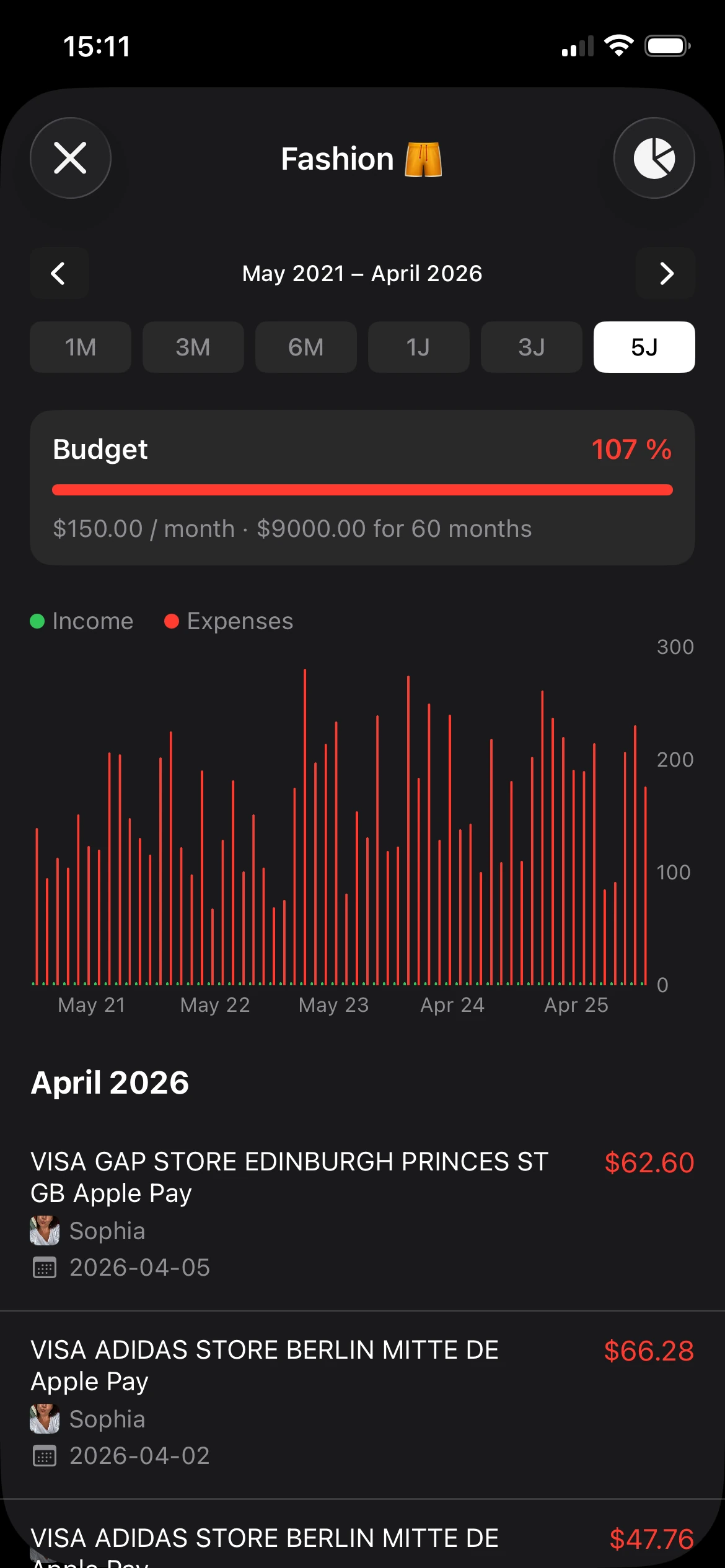
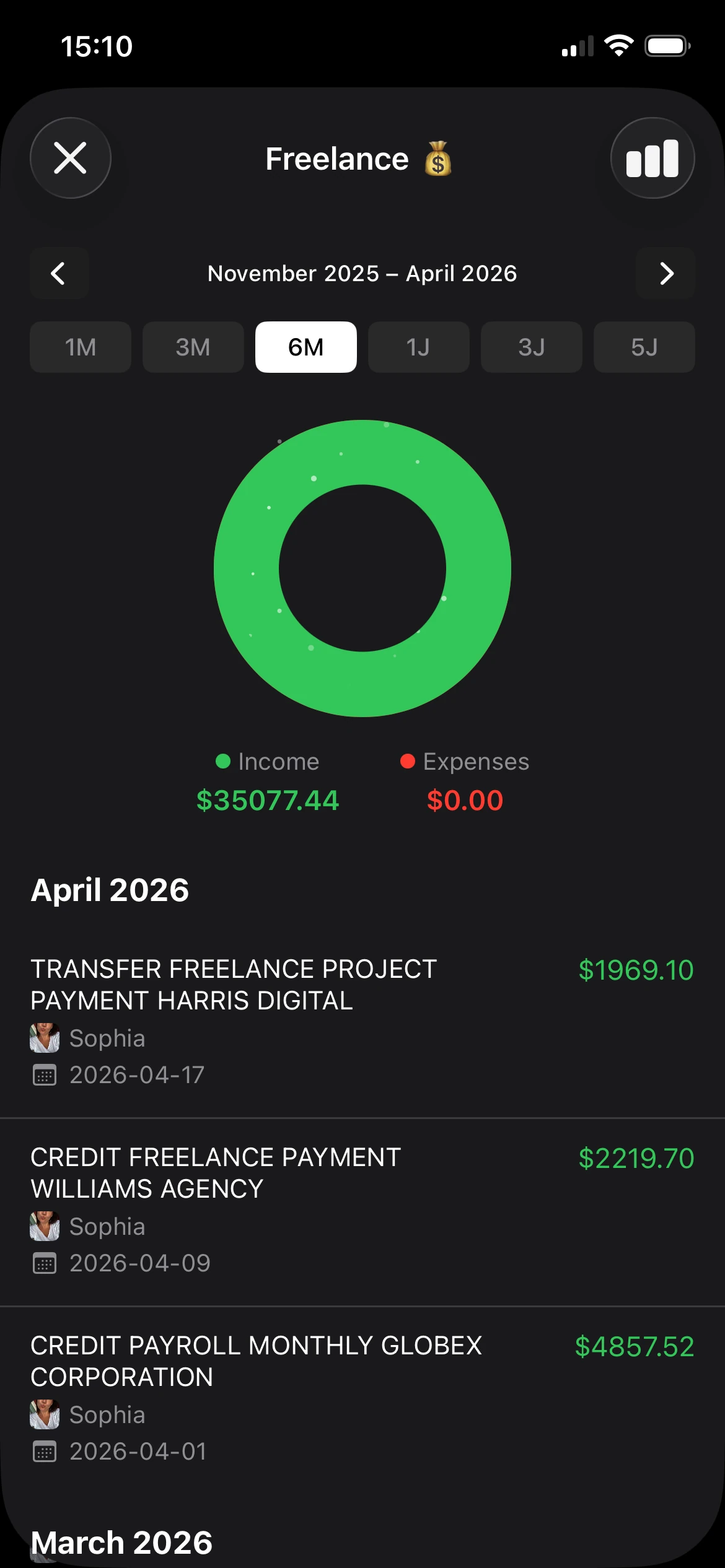
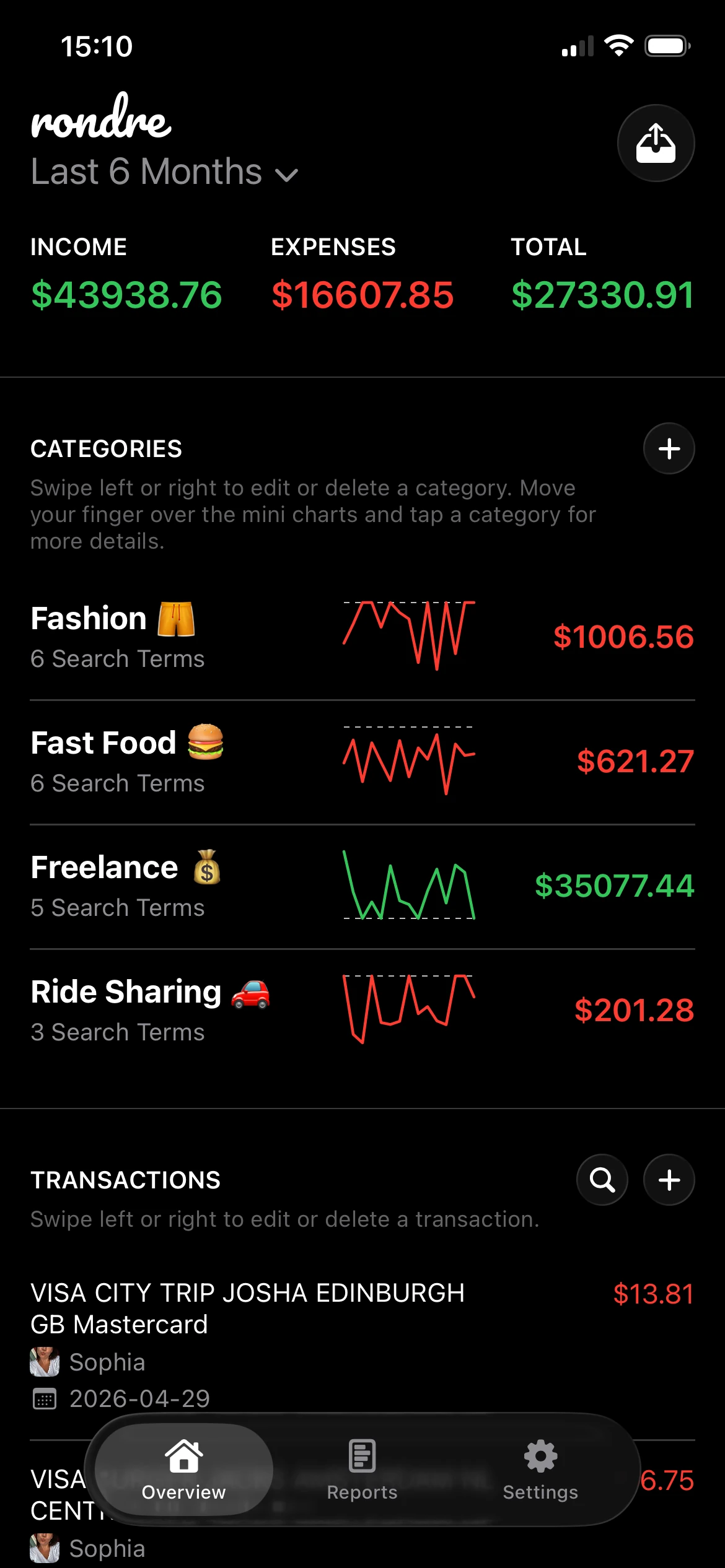
rondre is one option for that second step. It supports CSV and PDF imports on iPhone, which is useful if the end goal is not just storing Baader Bank records but reviewing them alongside the rest of your household finances in one private app.
The point is to finish the job. Log in, export the records that matter, name the files clearly, and review them while the context is still fresh.