El atractivo es fácil de entender. Un iPad parece el lugar perfecto para gestionar el dinero. Tiene más espacio de pantalla que un teléfono, es más cómodo revisar gráficos desde el sofá y parece el siguiente paso natural para alguien que ya lleva el seguimiento de sus gastos en un iPhone.
Ahí es donde muchas personas se hacen la misma pregunta. Si una simple aplicación de teléfono ya cubre el seguimiento diario, ¿es quicken for ipad una verdadera mejora, o convierte un hábito sencillo en un sistema más pesado, con más configuración, más sincronización y más dependencia de otro dispositivo?
Para alguien que valora la privacidad y la sencillez, esa diferencia importa. Quicken sigue teniendo peso por su larga historia en escritorio y su amplia conectividad bancaria. Pero en iPad, la experiencia no es lo mismo que descargar una aplicación moderna independiente y empezar un presupuesto en pocos minutos. La realidad práctica es más específica, y conviene entenderla antes de comprometerse.
Tabla de contenidos
- ¿Quicken para iPad es la mejora que necesitas?
- Qué es realmente Quicken para iPad y qué no es
- Funciones principales y flujos de trabajo sobre la marcha
- El coste real de usar Quicken en tu iPad
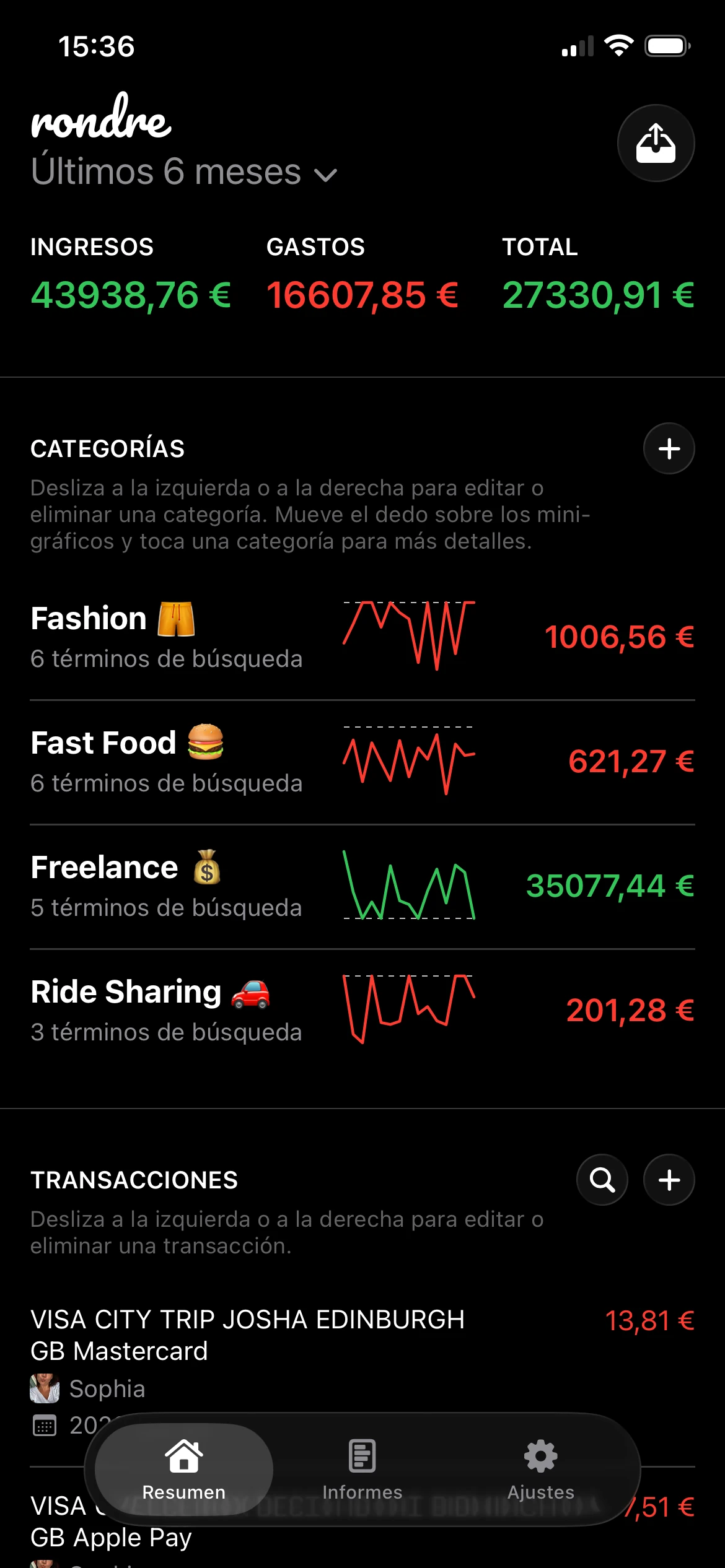
- Quicken frente a una aplicación moderna como rondre
- ¿Deberías usar Quicken o elegir una alternativa?
¿Quicken para iPad es la mejora que necesitas?
Una situación común es esta. Alguien ya lleva el seguimiento de sus gastos diarios en un iPhone, le gusta tener acceso rápido a categorías y transacciones recientes, y quiere una pantalla más grande para revisar. El iPad parece la mejora obvia.
A veces esa intuición es correcta. Si el objetivo es un panel financiero más amplio, Quicken puede resultar atractivo porque viene de un ecosistema de finanzas personales establecido desde hace mucho tiempo y ofrece una visión más amplia que muchas aplicaciones móviles ligeras. A primera vista, parece un paso de un seguimiento básico a algo más completo.
El problema es que la versión para iPad no es un salto limpio de simple a mejor. Es un salto del seguimiento móvil independiente a un sistema centrado en el escritorio. Eso cambia la experiencia diaria más de lo que normalmente se espera.
Regla práctica: si alguien quiere una aplicación para iPad que funcione como una herramienta financiera autónoma, Quicken normalmente no cumplirá esa expectativa.
Eso importa especialmente para las personas que ya prefieren herramientas con poca fricción. Suelen querer tres cosas: entrada rápida, revisión rápida y control claro sobre dónde viven sus datos. Quicken para iPad puede ayudar con la revisión, pero añade configuración de cuentas, dependencia del software y sincronización en la nube en medio del flujo de trabajo.
Una mejor forma de evaluarlo es preguntarse qué problema hay que resolver.
- Revisión en pantalla grande: Quicken puede ser útil para comprobar saldos, transacciones e informes en una tableta.
- Gestión completa del dinero pensada primero para iPad: en este punto, las expectativas suelen romperse. La aplicación para iPad no es el centro de mando.
- Seguimiento simple y privado: las personas que valoran una configuración mínima pueden encontrar el enfoque de Quicken más pesado de lo esperado.
Quicken para iPad tiene más sentido cuando el sistema de escritorio ya existe y el iPad es solo otra ventana hacia él. Tiene mucho menos sentido cuando se supone que el iPad debe reemplazar al escritorio o convertirse en el lugar principal donde se organiza la vida financiera.
Qué es realmente Quicken para iPad y qué no es

Lo más importante que hay que entender es esto. Quicken para iPad es una aplicación complementaria, no una aplicación financiera independiente. La ficha de App Store de la versión para iPad indica que la aplicación móvil Quicken Classic funciona exclusivamente como complemento del software Quicken de escritorio, utiliza el servicio en la nube de Quicken para la sincronización bidireccional y que, sin la parte de escritorio, la aplicación para iPad no tiene prácticamente ningún valor independiente, como se describe en la ficha de App Store de Quicken para iPad.
El modelo de aplicación complementaria
La analogía más clara es un mando a distancia de televisión. Un mando es útil cuando la televisión está presente, conectada y ya hace el trabajo principal. Por sí solo, no se convierte en el sistema de entretenimiento.
Quicken para iPad funciona de la misma manera. El archivo principal vive en el entorno de escritorio. La configuración de escritorio establece las cuentas, la estructura y el registro maestro. Luego, la aplicación para iPad se conecta a ese sistema mediante sincronización.
Eso significa que el recorrido del usuario no es “descargar la aplicación, crear categorías, empezar el seguimiento”. Es más parecido a esto:
- Instalar y mantener Quicken en un Mac o PC.
- Configurar allí el archivo financiero.
- Activar la relación de sincronización.
- Usar la aplicación para iPad para ver esos datos sincronizados y hacer cambios limitados.
Para usuarios de Quicken de escritorio de muchos años, esto puede parecer normal. Para un usuario de iPhone que espera que una aplicación moderna funcione por sí sola, puede parecer sorprendentemente anticuado.
Qué ocurre cuando falta la parte de escritorio
Esta arquitectura define cada compensación. Si el software de escritorio no está instalado, la aplicación para iPad no se convierte en una versión más ligera de Quicken. Se convierte en una carcasa que espera el sistema que hay detrás.
También por eso el uso sin conexión se vuelve una cuestión tan importante. El modelo de sincronización puede funcionar bien cuando todo ya está configurado y conectado. Funciona mal cuando alguien está viajando, lejos del equipo principal o espera que el iPad pueda asumir el papel de dispositivo financiero principal.
Cuanto más espere alguien que el iPad reemplace al escritorio, más frustrante suele volverse Quicken para iPad.
También hay un cambio de mentalidad. Una aplicación financiera independiente trata el teléfono o la tableta como el hogar del flujo de trabajo. Quicken trata el iPad como una extensión. Eso no es automáticamente malo. Simplemente es un producto muy diferente de lo que el nombre sugiere a muchos usuarios móviles.
Para usuarios preocupados por la privacidad, hay otro punto práctico. Como la experiencia en iPad depende de la sincronización en la nube entre dispositivos, la comodidad viene acompañada de un nivel de dependencia del sistema que algunas personas no quieren en una herramienta de finanzas personales.
Funciones principales y flujos de trabajo sobre la marcha

Una vez que Quicken ya está configurado correctamente, la aplicación para iPad se entiende mucho mejor. Lo mejor es verla como una herramienta de revisión y gestión ligera. Según la página de App Store de Quicken Classic, requiere iPadOS 15.1 o posterior, se conecta con datos de más de 14.000 instituciones financieras y permite a los usuarios ver saldos, cuentas, transacciones, tendencias de gasto y más de 20 tipos de informes estándar en iPad.
Lo que la aplicación para iPad hace bien
La ventaja de la pantalla grande es real. Revisar transacciones y desgloses por categoría en un iPad es más cómodo que hacer lo mismo en un teléfono, especialmente para personas a las que les gusta revisar tendencias de gasto o mirar listas de cuentas sin forzar la vista en una pantalla pequeña.
Sus puntos fuertes típicos incluyen:
- Revisión de saldos: es fácil abrir la aplicación y revisar los saldos de las cuentas en un solo lugar.
- Comprobación de transacciones: la actividad reciente está disponible en un formato que funciona bien para una revisión rápida.
- Revisiones de presupuesto: la aplicación ayuda a los usuarios a comparar el gasto actual con la estructura de presupuesto ya creada en otro lugar.
- Visualización de informes: informes estándar como Gastos por categoría están disponibles en la tableta, lo que resulta útil para revisiones financieras rutinarias.
También hay una comodidad práctica al usar el iPad en casa. Alguien puede sentarse después de cenar, abrir la aplicación y revisar cómo va el gasto de la semana sin sacar un portátil.
Dónde el flujo de trabajo empieza a sentirse limitado
Las limitaciones aparecen cuando alguien intenta hacer una configuración más profunda o tratar el iPad como el espacio de trabajo principal. La aplicación es buena mostrando información financiera. No es donde Quicken se siente más flexible o completo.
Un flujo de trabajo realista suele verse así:
| Tarea | Funciona bien en iPad | Mejor gestionarla en otro lugar |
|---|---|---|
| Revisar saldos de cuentas | Sí | No hace falta |
| Escanear transacciones recientes | Sí | No hace falta |
| Comprobar tendencias por categoría | Sí | No hace falta |
| Construir un sistema financiero completo desde cero | Limitado | Escritorio |
| Depender del iPad como único dispositivo financiero | A menudo frustrante | Configuración centrada en el escritorio |
Esa distinción importa en la vida diaria. Si alguien compra alimentos, espera a que los datos de la cuenta conectada pasen por el sistema Quicken más amplio y luego usa el iPad para revisar la categoría, la experiencia puede sentirse pulida. Si esa misma persona quiere que el iPad se convierta en el centro completo de la configuración de cuentas, creación de reglas y gestión independiente, el producto se siente más limitado.
Una buena prueba es sencilla. Si el trabajo principal es revisar finanzas sincronizadas en una tableta, Quicken para iPad puede ser útil. Si el trabajo principal es reemplazar al escritorio, normalmente no lo es.
Por eso algunos usuarios disfrutan Quicken en iPad mientras otros lo abandonan rápidamente. La aplicación tiene éxito cuando se usa como una ventana complementaria. Decepciona cuando se trata como un hogar financiero autosuficiente.
El coste real de usar Quicken en tu iPad
La App Store puede hacer que Quicken para iPad parezca más barato de lo que es, porque la aplicación móvil se puede descargar sin un pago inicial. En la práctica, esa etiqueta oculta el requisito real. La aplicación para iPad forma parte de un ecosistema de pago.
Eso importa porque la parte útil de Quicken para iPad no proviene de la descarga en sí. Proviene del acceso al producto de escritorio, los servicios conectados detrás de él y la relación de sincronización que hace que la aplicación para iPad se llene con datos reales. Sin esa configuración más amplia, la aplicación “gratuita” no resuelve mucho.
Descarga gratuita no significa uso gratuito
Para alguien que compara aplicaciones de forma casual, esto puede sentirse engañoso. Un rastreador independiente normalmente permite al usuario descargar la aplicación, introducir transacciones y empezar a aprenderla de inmediato. Quicken para iPad exige compromiso antes de que la experiencia en iPad se vuelva significativa.
El coste no es solo dinero. Incluye:
- Compromiso con el software: el usuario tiene que adoptar el sistema de Quicken centrado en el escritorio.
- Tiempo de configuración: cuentas, categorías, preferencias de sincronización y el archivo de escritorio requieren atención.
- Mantenimiento continuo: cuando aparecen problemas de sincronización, el usuario tiene otra capa que solucionar.
- Dependencia del sistema: el flujo de trabajo en iPad depende de mantener intacta la estructura más amplia de Quicken.
Esto no convierte a Quicken en una mala opción de valor. Solo significa que su valor es diferente de lo que esperan muchos usuarios centrados primero en lo móvil. Alguien que quiere un sistema integral puede considerar que el coste está justificado. Alguien que quiere un seguimiento rápido de gastos en una tableta puede sentirse sobreservido y demasiado comprometido.
Quién sentirá más el coste
Los usuarios que más probablemente notarán el peso de Quicken son quienes vienen de aplicaciones ligeras. Están acostumbrados al acceso inmediato y a menos piezas móviles. Cuando cambian a un producto que depende de una instalación de escritorio, relaciones de cuentas y sincronización en la nube, cada paso adicional se hace visible.
Algunas señales de que el coste puede sentirse demasiado alto, incluso antes de considerar el precio de la suscripción:
- El iPad es el dispositivo principal preferido
- La persona quiere exponer la menor cantidad posible de datos personales
- El proceso de presupuesto es simple, no muy orientado a inversiones
- La necesidad principal es seguimiento y claridad, no un gran sistema operativo financiero
Para personas que ya viven dentro de Quicken Desktop, la aplicación para iPad puede ser una extensión útil. Para quienes buscan un flujo de trabajo móvil más limpio, la carga total de propiedad suele importar más que el nombre de la marca.
Quicken frente a una aplicación moderna como rondre

La mayor diferencia no son solo las funciones. Es la filosofía.
Quicken viene de un modelo heredado donde el sistema financiero es amplio, por capas y ligado a la sincronización entre entornos. Una aplicación moderna como rondre parte de una suposición más simple. El usuario debería poder abrir la aplicación, registrar dinero directamente y mantener el control sin construir una pila de software más grande alrededor de esa tarea.
Esa diferencia se vuelve más evidente en iPad. Las conversaciones de la comunidad de Quicken señalan repetidamente la falta de una aplicación completa e independiente para iPad, y algunos usuarios califican la configuración actual como “inútil” para uso sin conexión o en viajes por su dependencia de la sincronización con el escritorio, como se refleja en la discusión de la comunidad de Quicken sobre Quicken en iPad.
La mayor diferencia filosófica
Quicken está diseñado para personas que aceptan la complejidad a cambio de un entorno financiero más amplio. Eso puede ser razonable para hogares con fuertes hábitos de escritorio, necesidades de informes complejas o años de historial ya almacenados en Quicken.
Una aplicación más simple toma el camino contrario. Reduce las piezas móviles. No asume que el usuario quiere software de escritorio conectado a la nube. No convierte la tableta o el teléfono en algo secundario frente a una instalación principal en otro lugar.
Para usuarios preocupados por la privacidad, esto importa mucho. La diferencia no es abstracta. Afecta a la rapidez con la que alguien puede empezar, la cantidad de configuración requerida y cuánto depende el uso diario de sistemas externos.
Algunas personas quieren un centro de mando financiero. Otras quieren una herramienta que no estorbe. Son trabajos diferentes.
Una división similar también aparece en las opciones de contabilidad de escritorio, donde los usuarios a menudo tienen que elegir entre software heredado amplio y flujos de trabajo más ligeros, por eso guías como esta visión general de software de contabilidad para MacBook conectan con personas que quieren menos fricción.
Comparación lado a lado
| Función | Quicken para iPad | rondre |
|---|---|---|
| Modelo principal | Aplicación complementaria vinculada a Quicken Desktop | Rastreador móvil independiente |
| Estilo de configuración | Requiere el ecosistema Quicken más amplio | Descargar y empezar |
| Independencia en iPad | Limitada | Diseñada para uso directo |
| Enfoque de privacidad | Flujo de trabajo dependiente de sincronización | No requiere cuenta ni registro |
| Estilo de entrada de datos | Se apoya en sincronización conectada y archivo Quicken existente | Entrada manual más importaciones CSV y PDF |
| Uso compartido | Vinculado a una estructura de cuentas más amplia | Libros compartidos para pareja o familia |
| Complejidad | Más alta | Más baja |
| Ideal para | Usuarios existentes de Quicken Desktop | Personas que quieren seguimiento simple y privado |
La conclusión práctica es sencilla. Si alguien quiere que su tableta se comporte como una pantalla complementaria para un sistema financiero de escritorio establecido, Quicken puede encajar. Si alguien quiere que el dispositivo móvil sea el verdadero hogar del flujo de trabajo, una aplicación moderna independiente suele ser la opción más limpia.
¿Deberías usar Quicken o elegir una alternativa?

La mejor respuesta depende menos de la preferencia de marca y más de los hábitos con los dispositivos. La gente suele preguntar si quicken for ipad es bueno. La mejor pregunta es si la persona quiere un complemento para tableta o una herramienta financiera autónoma.
Para quién encaja mejor Quicken
Quicken suele encajar con usuarios que ya tienen una rutina estable en escritorio y quieren acceso desde tableta como comodidad. El iPad se convierte entonces en una superficie de revisión para saldos, transacciones e informes estándar, no en el lugar donde vive todo el sistema.
Es una buena opción cuando la mayoría de estos puntos son ciertos:
- El hogar ya usa Quicken Desktop con regularidad
- Los registros financieros principales deben permanecer en ese entorno de escritorio
- El iPad sirve principalmente para revisar, no para construir
- Un sistema financiero más grande y por capas merece la configuración adicional
Encaja peor cuando el usuario es primero de iPhone o iPad, prefiere una configuración mínima, viaja a menudo o quiere mantener sus finanzas simples y directas. En esos casos, el modelo dependiente de sincronización añade fricción donde la persona esperaba comodidad.
La pregunta equivocada es “¿Quicken es potente?” La pregunta correcta es “¿Este flujo de trabajo coincide con la forma en que se gestiona el dinero cada semana?”
Una salida práctica si se siente demasiado pesado
Para alguien que prueba Quicken y se da cuenta de que es más sistema que herramienta, la mejor medida es simplificar el flujo de trabajo en lugar de seguir peleándose con él.
Una ruta práctica de migración se ve así:
- Revisar qué se está usando. Separa lo esencial del día a día de las funciones que casi no se tocan. Muchas personas solo necesitan historial de transacciones, categorías y una vista mensual clara.
- Exportar el historial de transacciones desde la parte de escritorio. Los usuarios de Quicken que quieren dejar la configuración dependiente de sincronización pueden sacar sus registros mediante los métodos estándar de exportación disponibles en el entorno de escritorio.
- Limpiar el archivo antes de importarlo en otro lugar. Elimina etiquetas de categoría duplicadas, comprueba las fechas y asegúrate de que las etiquetas de ingresos y gastos sean legibles.
- Importar a un rastreador más simple. La importación CSV suele ser la ruta más rápida cuando alguien quiere continuidad sin recrear cada transacción a mano.
- Reconstruir solo las categorías que importan. El nuevo sistema no tiene que reflejar cada regla antigua. Solo necesita apoyar mejores decisiones en adelante.
Ese último paso es donde muchas personas complican demasiado la transición. Asumen que salir de un sistema más grande significa perder control. A menudo ocurre lo contrario. Una vez que desaparecen las capas innecesarias, los patrones de gasto se vuelven más fáciles de entender y mantener.
Para parejas o familias, esta simplificación importa aún más. Una herramienta financiera funciona mejor cuando ambas personas pueden usarla. Si una persona entiende el software de escritorio y la configuración de sincronización mientras la otra evita abrir la aplicación, el sistema es técnicamente completo pero prácticamente débil.
El sistema útil más simple suele ganar frente al más rico en funciones. Eso es especialmente cierto en dispositivos móviles, donde la velocidad, la claridad y la confianza importan más que la profundidad sobre el papel.
La conclusión práctica es simple. Antes de cambiar a quicken for ipad, escribe las tres tareas financieras que ocurren con más frecuencia cada semana. Si esas tareas son revisión, entrada y comprobación de categorías en un dispositivo móvil, elige la herramienta que gestione esos trabajos directamente en lugar de llevarlos a través de un sistema de escritorio más amplio.
Si el objetivo es una forma más simple y privada de llevar el seguimiento del dinero en un teléfono, vale la pena probar rondre. Es gratis, no tiene anuncios, no tiene seguimiento, no requiere configurar una cuenta y facilita registrar transacciones, importar archivos CSV o extractos bancarios en PDF, organizar categorías y compartir un libro con una pareja o familia. Para cualquiera que quiera claridad financiera sin un flujo de trabajo dependiente del escritorio, descargarla y probar una semana real de gastos es un siguiente paso práctico.