A MacBook owner often starts with a simple goal. Track spending, send a few invoices, separate business from personal expenses, or keep a shared view of household money. Then the search for accounting software for MacBook turns messy fast.
Most review lists push readers toward business platforms packed with payroll, inventory, bank feeds, and accountant-level reports. Those tools are useful for some people. They’re also overkill for many individuals, couples, and freelancers who mostly want clarity, speed, and privacy.
Table of Contents
- Why Finding the Right Mac Financial App Is So Hard
- Understanding Your Options from Trackers to Full Accounting
- Essential Features for Any MacBook User
- Recommended Workflows for Your Life
- How to Get Started and Migrate Your Data
- Your Next Step to Financial Clarity on Mac
Why Finding the Right Mac Financial App Is So Hard
The confusion isn’t imagined. Most content about accounting software for MacBook points readers toward cloud-based business suites such as QuickBooks Online and Xero, while leaving out the simpler category many people want. One reviewed market gap is especially telling: search demand for “free Mac accounting no signup” is up 40% YoY, while mainstream coverage still centers on enterprise-style tools and subscriptions, as noted in NerdWallet’s roundup of accounting software for Macs.
That mismatch creates a bad starting point. A freelancer who just wants clean expense tracking gets shown the same software as a growing company with payroll. A couple trying to manage rent, groceries, and travel costs gets told to evaluate inventory, tax workflows, and advanced reconciliation.
The problem isn’t lack of options
There are plenty of apps. A key issue is that the market often bundles very different needs into one giant category.
A MacBook user usually falls into one of these groups:
- Individuals: They want spending visibility, category tracking, and easier monthly reviews.
- Couples or families: They need a shared system that doesn’t turn into a spreadsheet argument.
- Freelancers: They want to separate client income and expenses without adopting a full accounting department’s workflow.
- Growing businesses: They may need invoicing, payroll, and formal bookkeeping features.
When every guide starts from the fourth group, the first three end up feeling like they’re doing something wrong by wanting less software, not more software.
Practical rule: If a finance app asks for more setup than the user’s real life requires, there’s a good chance it won’t get used consistently.
Why Mac users feel this more sharply
Mac users tend to notice software friction quickly. Clunky design, slow interfaces, and Windows-first experiences stand out. That’s why “works on Mac” and “feels right on Mac” are not the same thing.
A browser-based app might technically run anywhere. But many people still want a tool that feels lightweight, respects privacy, and doesn’t force an account, a trial, or a subscription before they can record one transaction.
That’s the key idea behind this guide. The best accounting software for MacBook isn’t always the biggest product with the longest feature list. For many people, the right choice is the one that fits daily life with the least resistance.
Understanding Your Options from Trackers to Full Accounting
Choosing software gets easier once the category is clear. The easiest analogy is this: some people need a screwdriver, and some need a toolbox. Problems start when someone shopping for a screwdriver gets sold a whole garage.

Why so many people choose the wrong category
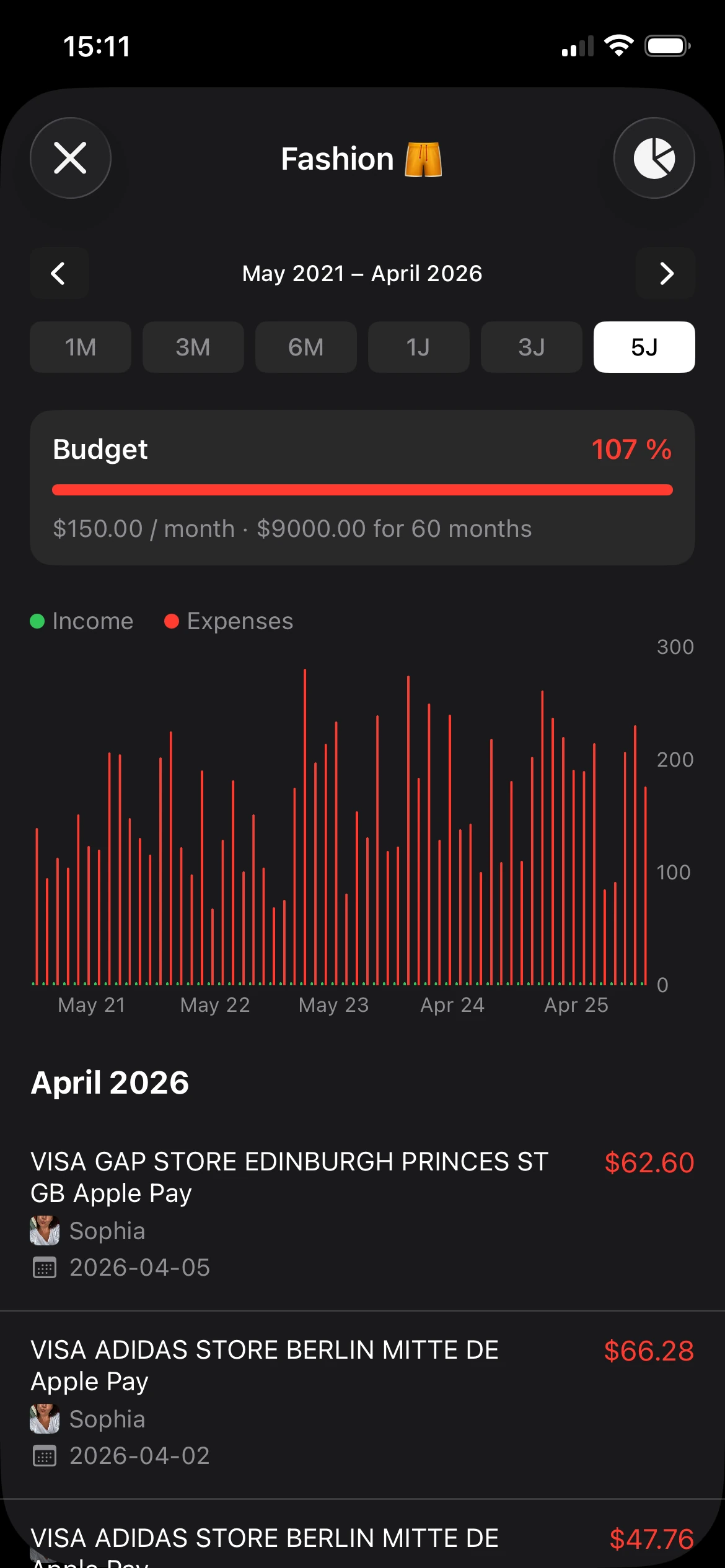
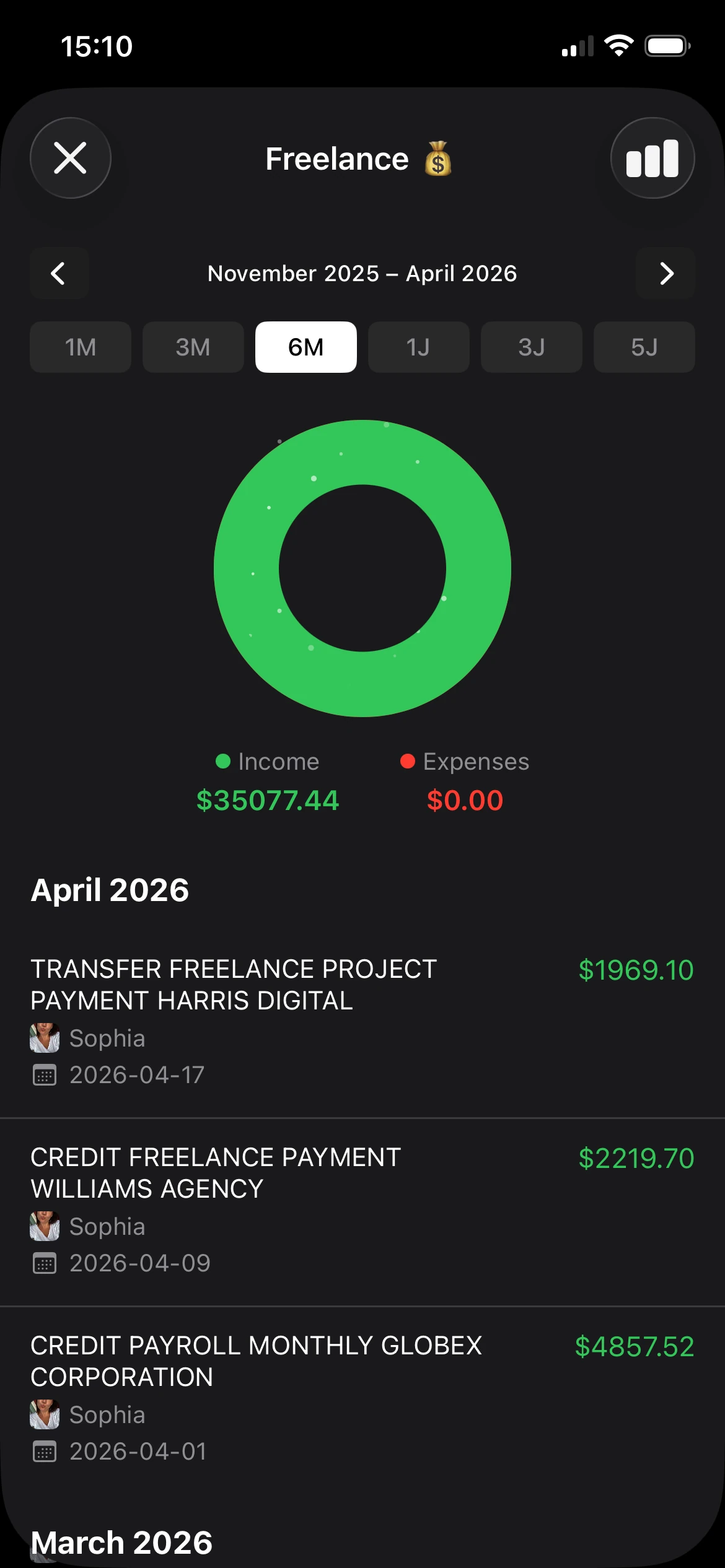
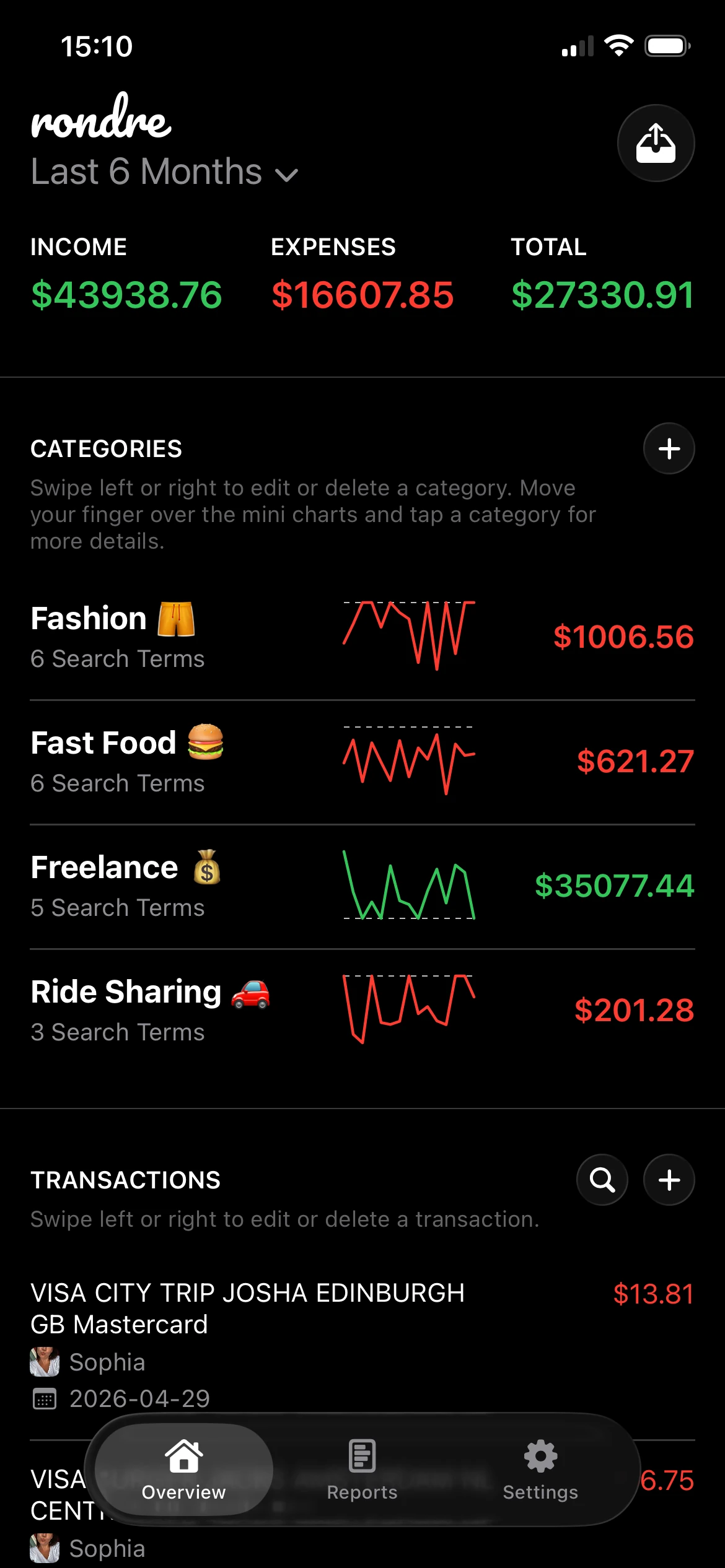
A lightweight tracker helps someone record income and expenses, review categories, import statements, and keep money visible. It’s built for speed and routine. This category fits people replacing notes, spreadsheets, or scattered banking apps.
A full accounting suite handles formal bookkeeping and business operations. QuickBooks is the classic example. It was introduced in 1992, and its big shift was moving users from hard-to-use DOS systems to a more intuitive GUI for Mac and Windows, which helped it become a long-running choice for growing businesses, according to QuickBooks historical background.
That history matters because it explains the product shape. QuickBooks wasn’t built to be a minimalist personal tracker. It was built to support business accounting tasks such as invoicing, bill payments, payroll, and reconciliations.
Most frustration comes from category mismatch, not bad software. The wrong app can be excellent for someone else.
A freelancer with a handful of clients may not need payroll. A household definitely doesn’t need inventory management. On the other hand, a business with employees and accountant handoff probably shouldn’t rely on a bare-bones tracker alone.
Software Types Compared Tracker vs. Full Accounting
| Aspect | Lightweight Tracker (e.g., rondre) | Full Accounting Suite (e.g., QuickBooks) |
|---|---|---|
| Main purpose | Track spending, income, categories, and shared budgets | Run formal business accounting |
| Best for | Individuals, couples, freelancers with simple workflows | Growing businesses with operational complexity |
| Setup effort | Usually low | Usually higher |
| Learning curve | Short | Longer |
| Typical features | CSV/PDF imports, categories, shared books, quick search | Invoicing, payroll, reconciliations, accountant workflows |
| Privacy expectations | Often stronger in local-first or no-signup tools | Often tied to cloud accounts and service ecosystems |
| When it fits | Daily visibility matters most | Compliance and business process depth matter most |
A good rule is to ask one question first: Does the user need accounting operations, or just financial clarity?
If the answer is financial clarity, a tracker is often the better fit. If the answer includes payroll, formal reporting, or advanced business administration, a suite makes more sense.
Essential Features for Any MacBook User
A MacBook user doesn’t just need features on paper. The software has to feel fast, stable, and easy enough to keep open during normal life. That matters whether the tool is a simple tracker or a larger accounting product.

Native Mac performance matters
Native optimization is not marketing fluff. It changes the day-to-day experience. In one reviewed comparison, Mac-optimized accounting software can deliver up to 30% faster data synchronization across devices compared with Windows-emulated tools, thanks to Apple Silicon support and lower reporting latency, according to Setapp’s guide to the best accounting software for Mac.
That difference shows up in small moments. Opening reports. Switching devices. Reviewing recent transactions while moving between MacBook and iPhone. Software that feels delayed tends to get postponed. Postponed finance habits usually become ignored finance habits.
The shortlist that actually matters
A MacBook buyer comparing finance apps should focus on a short list.
- Native or Mac-friendly design: The app should feel at home on macOS. Menus, text, scrolling, and device syncing should feel natural, not adapted as an afterthought.
- Easy import options: CSV and PDF support matter because manual entry gets old fast. Imports reduce friction, especially when someone is switching from spreadsheets or downloaded bank files.
- Shared access when needed: Couples and families often need one clean place for joint expenses. Freelancers may want separate books or categories instead.
- Fast search and clear categories: Finding one transaction should take seconds, not a detective session.
- Privacy-first setup: Many users don’t want ads, tracking, or a long signup flow just to understand their own spending.
- Useful reporting, not maximum reporting: A personal user might need category totals and monthly trends. A business might need more formal reports. More charts aren’t automatically more helpful.
A common mistake is treating advanced features as better. They aren’t. A feature only helps if it supports the user’s actual workflow.
Useful filter: If a feature wouldn’t be used at least monthly, it probably shouldn’t drive the buying decision.
Another good test is emotional. After ten minutes, does the app make money feel clearer or heavier? For users searching for accounting software for MacBook, that answer matters more than the longest spec list.
Recommended Workflows for Your Life
The easiest way to judge software is to look at real-life use, not feature grids. Three common workflows show where simple tools shine and where bigger software may still be worth the effort.

A couple managing shared household spending
A couple usually doesn’t need formal accounting. They need a shared view of reality.
A practical workflow looks like this:
- Create one shared book for household transactions.
- Import recent statements or add transactions as they happen.
- Use categories for rent, groceries, utilities, transport, and eating out.
- Review the same screen once a week instead of debating from memory.
This works well because the system reduces confusion. There’s one version of the numbers. Shared spending becomes visible without turning every purchase into a discussion.
A freelancer separating personal and business money
Freelancers sit in the middle. They often need more structure than a personal budget, but less machinery than a full accounting suite.
A simple workflow can look like this:
- Separate books or categories: One for personal spending, one for freelance income and expenses.
- Import bank files regularly: This keeps the log current without manual re-entry.
- Tag tax-relevant expenses clearly: Software subscriptions, travel, home office costs, and client meals can be easier to review later when they’re categorized from the start.
- Search by client or vendor: Fast lookup helps when checking whether an invoice was paid or an expense was duplicated.
For many freelancers, this level of organization is enough for cleaner records and easier conversations with an accountant. If the business later grows into payroll, staff, or more formal bookkeeping, then a move to larger software may be justified.
Start with the lightest workflow that still creates clean records. Complexity can be added later. Cleaning up a bloated system is harder.
A personal finance user building awareness
Some MacBook users aren’t running a business at all. They just want to stop feeling fuzzy about money.
That workflow is usually the simplest and often the most effective:
| Goal | Practical move |
|---|---|
| See where money goes | Categorize the last month of transactions |
| Spot repeated spending | Search for subscriptions, food delivery, or transport charges |
| Build a saving habit | Review one category to trim, not the whole budget at once |
| Stay consistent | Check finances on the same day every week |
This kind of routine doesn’t require formal accounting vocabulary. It requires a tool that makes reviewing money feel quick enough to repeat.
How to Get Started and Migrate Your Data
The hardest part is usually starting, not using the software. Many people assume migration will be messy because older financial tools trained users to expect manual setup and tedious entry. Modern software has changed that. The move from old DOS-era accounting programs to newer systems drastically reduced day-to-day complexity, including automated invoice imports and smoother data synchronization across devices, as described in this history of small business accounting software.
Start with the smallest possible migration
A full financial overhaul sounds exhausting. A small import doesn’t.
A better starting point is one account, one file, one month. That gives the user a working system quickly and avoids the common trap of planning the “perfect” setup without ever finishing it.
The first migration usually works best when someone gathers:
- A recent CSV export: Good for structured imports and category cleanup.
- A PDF statement: Useful when software supports statement-based extraction.
- A short category list: Only the categories to be used.
- A decision on scope: Personal only, shared household, freelance only, or separate books.
A simple setup routine
A clean routine often works better than a giant one-time project.
- Choose the category of app first. If the need is tracking and visibility, pick a tracker. If the need includes formal accounting tasks, pick a suite.
- Import one recent statement. Don’t start with three years of history.
- Fix only obvious categories. Groceries, rent, software, transport, income. That’s enough to begin.
- Set a weekly review habit. Ten minutes is usually more useful than a monthly scramble.
A weekly rhythm matters because money management fails when the app becomes a storage locker instead of a tool. Consistent light review beats occasional deep cleanup.
A successful migration doesn’t mean every past transaction is perfect. It means the next month becomes easier to understand.
Your Next Step to Financial Clarity on Mac
The best accounting software for MacBook is the one that matches the user’s real life. Not the one with the most modules. Not the one with the loudest marketing. The one that gets opened, updated, and trusted.
Simplicity wins when it gets used
That’s why many people should start simpler than they think. A household doesn’t need business accounting by default. A solo freelancer doesn’t always need a full suite on day one. A personal finance user almost never benefits from software built around company operations.
There’s also a practical side to this. A lighter app is easier to test. If it gives enough structure to track spending, review categories, and keep records clean, it may already be the right answer. If budgeting is part of the goal, a practical next read is this guide on how to create a household budget.
One action for today
The lowest-friction next step is simple. Pick one recent bank statement or CSV export and import it into a tool that doesn’t demand a long setup process. Then review the result and ask three questions:
- Is the data easy to search?
- Do the categories make sense?
- Would this be easy to maintain next week?
If the answer is yes, that matters more than whether the app also supports features meant for a ten-person company.
Financial clarity usually doesn’t begin with a grand system. It begins with one clean import and one honest review.
A good next move is to try rondre, especially for anyone who wants a free, private, no-signup way to track personal, shared, or freelance money on Apple devices. Import one CSV or PDF statement today, sort a few categories, and use that as the baseline for a simpler weekly finance routine.