A Scalable Capital login problem usually shows up at the worst moment. Someone opens the app to check a portfolio, confirm a trade, or just make sure everything looks normal, and instead gets stuck between a password prompt, a second verification step, and a vague error that doesn't explain much.
That's frustrating because this isn't a casual app login. Scalable Capital has offered digital wealth management since the beginning of 2016 and says it has raised €470 million across five funding rounds on its about page. For users, that means the login sits in front of a substantial investment platform, not a lightweight dashboard.
Table of Contents
- Getting Past the Login Screen
- Your Scalable Capital Login Walkthrough
- Common Login Problems and How to Fix Them
- Keeping Your Scalable Capital Account Secure
- Consolidating Your Financial Picture After Logging In
- Your Practical Takeaway A Login Security Checklist
Getting Past the Login Screen
Most Scalable Capital login issues fall into one of three buckets. The user is on the wrong page, the second authentication step isn't completing, or the device itself is blocking the session. That's why the fastest fix usually comes from checking the setup in the right order instead of retrying the same password over and over.
A clean approach works better. First confirm the page or app is legitimate. Then enter credentials once, carefully. Then handle the second verification step without switching devices, apps, or browser tabs more than necessary.
Practical rule: Treat a finance-app login like a bank transfer. Slow is safer than fast.
A good mental model is this:
- Page check first. Make sure the login is happening in the official flow, not from an old bookmark or search result that leads somewhere unexpected.
- Password second. Type it manually if autofill keeps failing.
- Second factor third. Don't assume the code step is broken until the device, time settings, and connectivity are checked.
- Troubleshooting last. Resetting too early can create more confusion, especially if multiple devices are involved.
Users who also deal with linked banking workflows sometimes run into similar access friction on other platforms, which is why guides such as this Baader Bank login walkthrough can be useful for comparison. The exact interfaces differ, but the practical pattern is similar. Verify the official entry point, complete the security step, and only then move into recovery actions.
Your Scalable Capital Login Walkthrough
The smoothest Scalable Capital login starts with using the official login flow and expecting a second verification step every time. Since March 2024, two-factor authentication is mandatory for all accounts, according to Scalable Capital's mandatory 2FA announcement. In plain terms, password-only access is no longer enough.

Start with the right login page
For web login, open the official Scalable Capital site and continue only if the login flow sends to the expected secure sign-in experience. If something looks off, stop and re-enter from the main site rather than following an email or message link.
For app login, open the official Scalable Capital app directly from the device. Don't use copied links from chats, forums, or search ads to reach account access pages.
Before entering anything, check these basics:
- Correct email address. Many failed logins come from using an old address or a typo that looks almost right.
- Correct password. Password managers help, but they can also autofill stale credentials if an old record is saved.
- Stable connection. A weak signal can interrupt the handoff between password entry and the second verification step.
What the login flow looks like
The normal login flow is straightforward when everything is working:
- Open the website or app.
- Enter the account email and password.
- Complete the required 2FA prompt.
- Wait for the session to finish loading before retrying anything.
That third step matters most now. A user who enters the right password but doesn't complete the second factor still won't get in. That's expected behavior, not a bug.
If the password is accepted but access still stops, the next thing to inspect is usually the second verification step, not the password itself.
For web users, it helps to keep the browser window focused until login finishes. For app users, it helps to avoid jumping between apps too quickly during authentication. Some login attempts fail because the session times out while the user is hunting for a code or switching devices.
If the process loops back to the login screen, don't keep hammering the button. Exit the session, reopen the app or page, and do one clean attempt from the start. That's usually faster than stacking partial attempts on top of each other.
Common Login Problems and How to Fix Them
When a Scalable Capital login fails, the obvious explanation isn't always the actual one. Password mistakes happen, but so do session conflicts, custodian-specific sign-ins, and device-level security checks that block the app before credentials even matter.
Fast checks before deeper troubleshooting
Start with the low-friction fixes. They solve more problems than people expect.
- Retry from a fresh session. Close the app fully or restart the browser tab, then try again once.
- Use the password reset only if needed. If there's genuine doubt about the password, recovery makes sense. If the password is likely correct, the problem may sit elsewhere.
- Check for multiple account paths. Scalable Capital notes that accounts held with different custodian banks require separate logins. If one login works for one account but not another, that may be the reason.
- Rule out service issues. The official status page has shown partial service availability at times, so an occasional failure may be operational rather than a user mistake.
Scalable Capital Login Troubleshooting
| Problem | Quick Fix |
|---|---|
| Password seems correct, but login still fails | Restart the session and try again carefully once before changing credentials |
| Password reset email or flow isn't helping | Make sure the account email is the right one, then restart from the official login route |
| App login works on one account but not another | Check whether the accounts are tied to different custodian-bank login paths |
| Browser login keeps looping back | Clear the current session by closing the tab, then reopen and sign in fresh |
| 2FA step doesn't complete cleanly | Keep the device connected, avoid app switching, and retry from the start |
| Login fails only on a hardened phone | Test from a standard browser or another device to isolate whether device attestation is blocking access |
The fastest troubleshooting move is isolation. Change one thing at a time, not five.
When the phone itself is the problem
This is the issue many generic guides miss. Community reports in a GrapheneOS discussion about the Scalable Capital app show that login can fail when the app detects a modified operating system. The same discussion mentions a Play Integrity-related setting called “block usage attempts” as a workaround raised by users there.
That changes the diagnosis completely. In those cases, the problem may have nothing to do with the password, email address, or normal 2FA flow. The app may be rejecting the device posture before a normal sign-in can complete.
That's why the best test is comparative:
- Try the login from a regular web browser.
- If possible, try from a different phone.
- If the login succeeds elsewhere, the hardened device is the likely cause.
- Review any device-integrity or app-compatibility settings before retrying.
What usually doesn't work is endless password resets on the same privacy-hardened phone. If the device is failing integrity checks, new credentials won't fix that. The better move is to confirm whether the issue is account-related or device-related first.
Keeping Your Scalable Capital Account Secure
A secure Scalable Capital login isn't just about getting in. It's about making sure the login path is legitimate every single time. Scalable Capital centralized its authentication flow around secure.scalable.capital and notes that accounts with different custodian banks may require separate logins in its new login announcement. That makes domain verification a real habit, not a nice extra.
The habits that actually matter
Users don't need complicated security theory here. A few repeatable habits do most of the work.
- Use a unique password. Reused passwords turn one breach elsewhere into a finance problem.
- Check the domain every time.
secure.scalable.capitalshould be familiar enough that anything close but not exact feels wrong immediately. - Protect the second factor. A 2FA code should be treated like a one-time key, never forwarded or shared.
- Keep devices current. Old operating systems and neglected browsers create avoidable login and security problems.
- Review account activity. Small checks catch strange behavior faster than waiting for a bigger issue.
A broader private-money workflow also gets easier when the rest of a person's finances are organized well. Readers interested in that side of things may find this guide to a personalized finance app useful.
What doesn't work
Some security habits sound smart but fail under pressure.
Don't trust a login page just because it looks polished. Trust the domain.
Other weak patterns include saving credentials in random note apps, clicking straight from unsolicited messages, and assuming that a successful password entry means the page itself is genuine. On a finance platform, design can be copied. Domain verification is harder to fake in practice if the user checks it.
The other mistake is treating security setup like a one-time task. It isn't. Login safety is a routine. The people who avoid most problems are usually the ones who slow down for ten seconds before signing in.
Consolidating Your Financial Picture After Logging In
Once the Scalable Capital login works again, the immediate temptation is to check the portfolio, scan for changes, and close the app. That solves the access problem, but it doesn't answer the bigger question. How does that account fit into the rest of the person's finances?

Check the account, then zoom out
A practical review after login usually looks like this:
- Confirm the portfolio and recent activity look normal.
- Note any deposits, withdrawals, or trades that affect overall cash flow.
- Compare that with current bank balances, bills, and regular spending.
- Update the household or personal money view so investments don't sit in isolation.
That last step matters more than many users expect. An investment account can look healthy while the broader monthly cash picture is strained, or the reverse.
For readers who also track regional banking relationships and everyday spending, this Sparda-Baden-Württemberg guide is another example of how account-specific access fits into a wider financial routine. Logging in is the tactical task. Seeing the whole picture is the strategic one.
A good system turns scattered account checks into one habit. Check access. Confirm security. Then record what changed in the broader financial picture.
Your Practical Takeaway A Login Security Checklist
If the Scalable Capital login is working now, this is the right moment to tighten the setup before the next problem appears.
- Bookmark the correct login flow so there's no dependence on search results or message links.
- Test the second verification step once in a calm moment, not only when urgent account access is needed.
- Check whether multiple custodian-bank logins apply if account access behaves inconsistently.
- Try a second device or browser if the app fails on a privacy-hardened phone.
- Remove stale saved passwords from password managers or browsers if autofill keeps submitting the wrong one.
- Pause before every sign-in and confirm the secure domain is exactly what it should be.
- Review recent account activity after regaining access, especially if there were repeated failed login attempts.
A clean login process is part convenience and part security. If either side breaks, the whole experience gets worse.
The useful move today is simple. Do one calm test login, verify the domain, confirm the second factor works, and make sure there's a fallback device available if the main phone causes trouble.
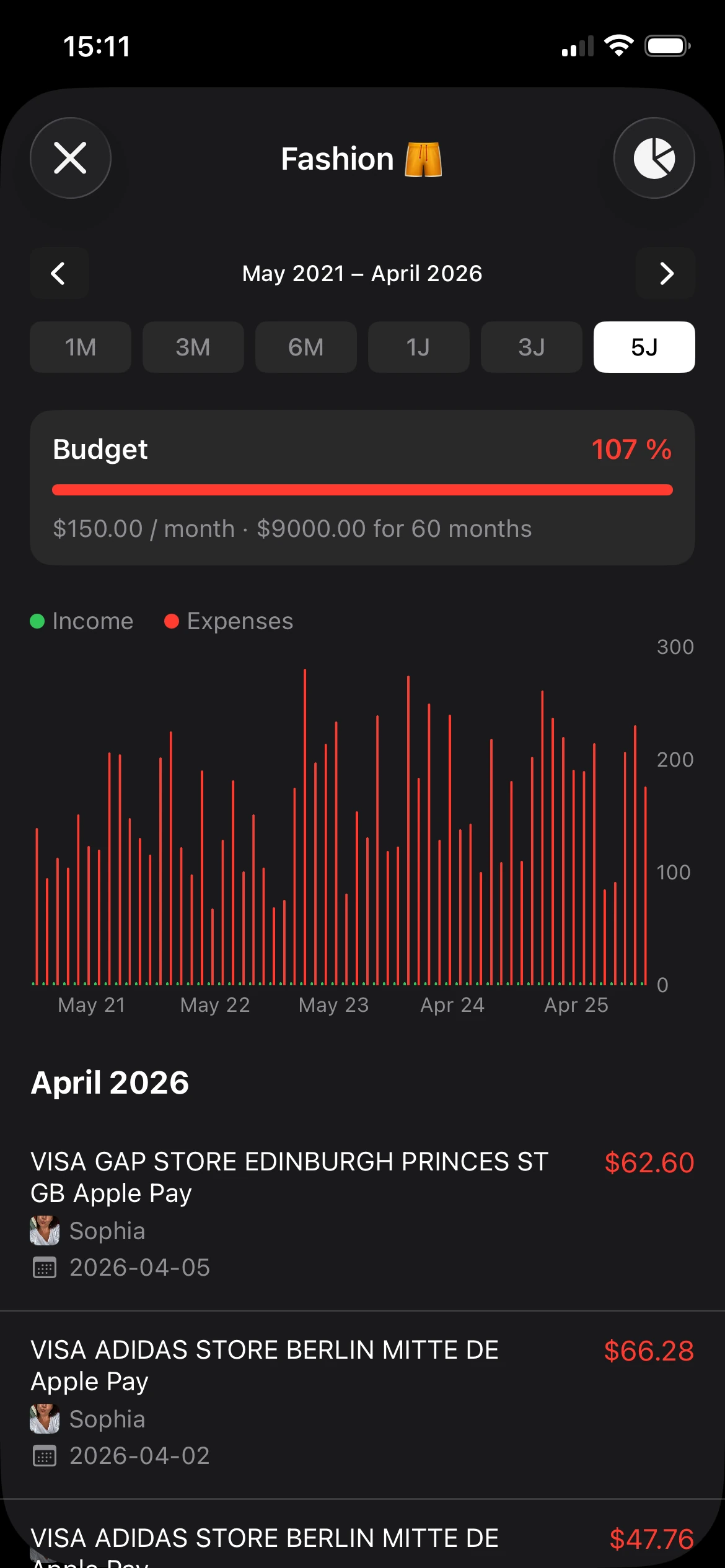
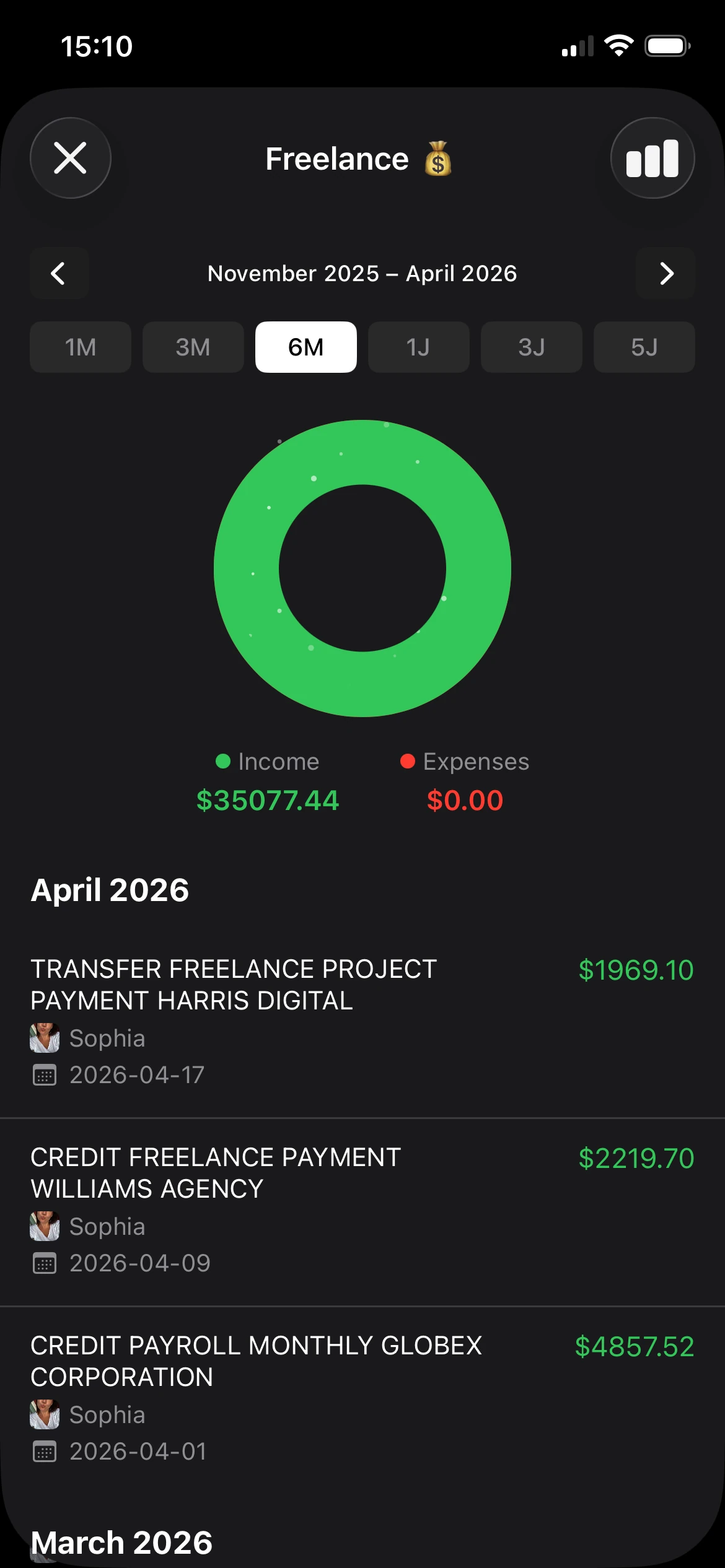
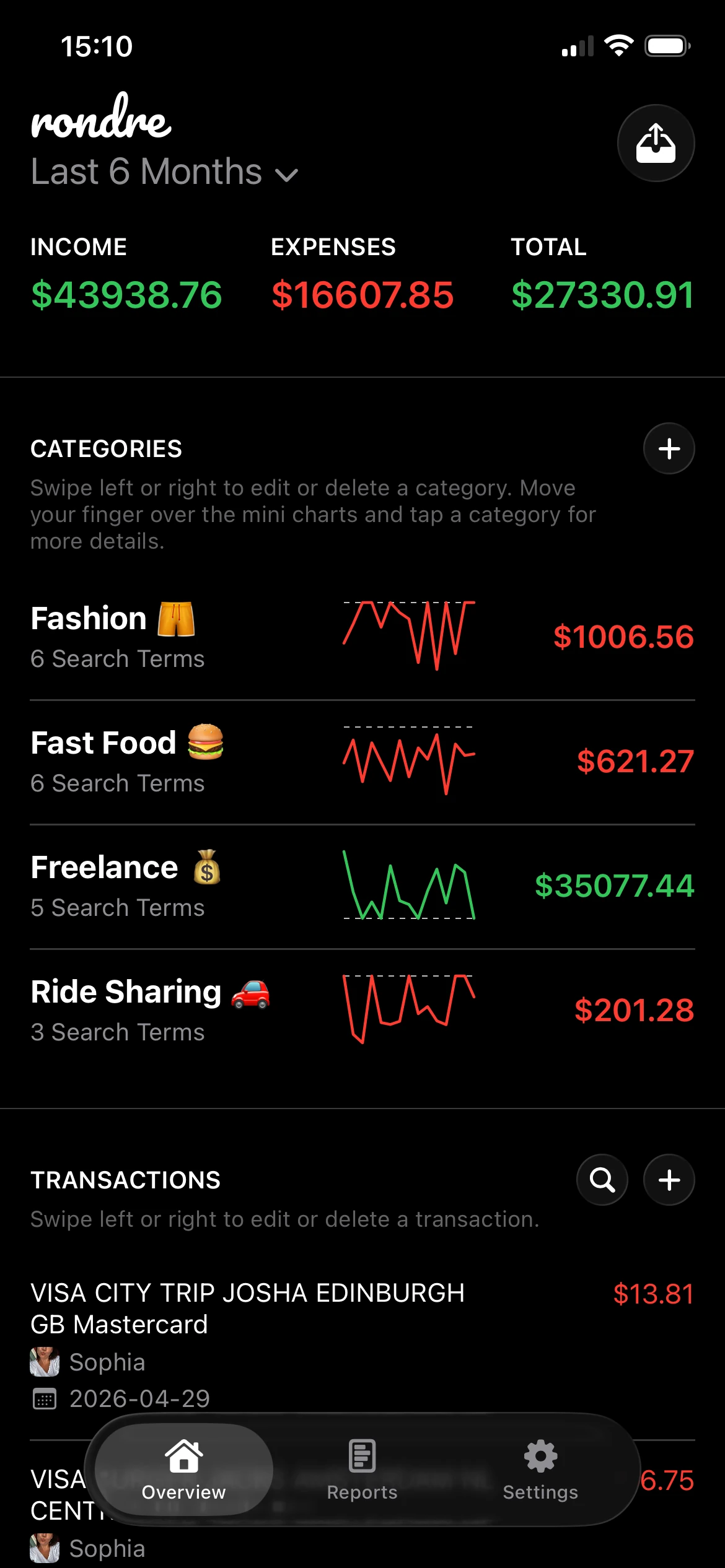
If keeping track of accounts, balances, and day-to-day money still feels scattered after logging in, rondre is worth a look. It's a free iPhone personal finance tracker with no account, no ads, and no tracking, so users can record transactions, organize categories, import statements, and keep a clearer view of their money without adding another login to manage.