Das typische Problem beim Miles & More Kreditkarte Login beginnt immer gleich. Man möchte eigentlich nur eine Kleinigkeit erledigen – einen Kontoauszug prüfen, eine Zahlung bestätigen oder nachschauen, ob eine Transaktion gebucht wurde – und steht plötzlich vor mehreren Login-Seiten, die zwar ähnlich aussehen, sich aber unterschiedlich verhalten.
Diese Verwirrung hat sich nach dem Kreditkartenwechsel weg von der DKB noch verschärft. Dazu kommen das ältere Miles & More-Benutzerkennung-System, das neuere Travel ID-System und eine separate mobile App mit biometrischem Login – da ist es leicht, die richtigen Zugangsdaten an der falschen Stelle einzugeben.
Diese Anleitung zeigt einen praktischen Weg durch dieses Durcheinander. Sie trennt den Zugang zum Vielfliegerprogramm vom Kreditkartenzugang, erklärt, wo der DKB- und Deutsche Bank-Wechsel eine Rolle spielt, und zeigt die Fallback-Schritte, die helfen, wenn der Login nicht mehr funktioniert.
Inhaltsverzeichnis
- Welches Miles & More Login-Portal solltest du 2026 nutzen
- Schritt für Schritt: Miles and More Kreditkarte Login am Desktop
- Deine Kreditkarte über die mobile App verwalten
- Häufige Login-Fehler lösen und Zugangsdaten zurücksetzen
- Wichtige Sicherheitstipps zum Schutz deines Kontos
- Dein praktisches Fazit für heute
Welches Miles & More Login-Portal solltest du 2026 nutzen
Du öffnest die Login-Seite, um einen Kontoauszug zu prüfen, gibst die Zugangsdaten ein, die immer funktioniert haben – und wirst abgewiesen. In vielen Fällen ist das Passwort nicht das eigentliche Problem. Das Problem ist, dass Miles & More nach wie vor mehr als ein Portal umfasst, und der Wechsel von DKB zu Deutsche Bank hat diese Aufspaltung noch schwerer erkennbar gemacht.
Fang mit dem an, was du tun möchtest. Wenn du Prämienmeilen, Vielflieger-Status oder Profildaten des Vielfliegerprogramms einsehen willst, nutze das Miles & More-Hauptportal. Wenn du Kontoauszüge, Kartentransaktionen, zahlungsbezogene Funktionen oder Kartenservice benötigst, nutze den Miles & More Kreditkarte Login für das Kreditkartenkonto.

Die Portal-Aufspaltung, die die meiste Verwirrung stiftet
Das Verwirrende daran ist, dass die Kreditkartenseite nicht einfach ein weiterer Tab innerhalb des Airline-Kontos ist. Sie wird eher wie ein Finanzprodukt betrieben, mit einem eigenen Zugangspfad und – während der Übergangsphase – manchmal unterschiedlichen Anbieteranweisungen.
Eine kurze Überprüfung hilft:
| Aufgabe | Richtiger Login-Ort |
|---|---|
| Meilenguthaben oder Status prüfen | Miles & More Programmportal |
| Kontoauszüge oder Zahlungen verwalten | Kreditkartenportal |
| Airline-Treueprogramm-Profil nutzen | Miles & More-Konto |
| Banking-ähnlichen Kartenzugang nutzen | Kartenkonto-Login |
Lass die Aufgabe das Portal bestimmen. Dann erst die Zugangsdaten eingeben.
Wo die DKB noch passt und wo jetzt die Deutsche Bank passt
Das ist der Teil, den viele ältere Anleitungen übersehen. Es gibt keine einheitliche Antwort, die während der Übergangsphase für alle Karteninhaber gilt.
Lufthansa erklärt, dass das Miles & More Kreditkartenportfolio ab dem 1. Oktober 2025 zur Deutschen Bank gewechselt hat, dass der Übergang voraussichtlich bis Frühjahr 2026 andauern wird, dass bestehende DKB-Karten bis zum individuellen Wechsel oder zur Kündigung des jeweiligen Kunden gültig bleiben und dass das Legacy-DKB-Informationsportal laut der Ankündigung der Lufthansa Group nur noch bis zum 30. Juni 2026 verfügbar sein soll.
Das bedeutet: Dein richtiger Login-Weg hängt von deinem tatsächlichen Migrationsstatus ab – nicht vom Kalenderjahr.
- Legacy-DKB-Konto: Einige Karteninhaber können bis zum Abschluss ihrer individuellen Migration noch auf ältere Informationen oder temporäre Zugangspfade angewiesen sein.
- Bereits migriertes Konto: Der Kartenservice sollte den Anweisungen der Deutschen Bank folgen.
- Neu ausgestelltes Konto: Hier gilt von Anfang an der Deutsche Bank-Service.
- Nicht sicher, in welche Gruppe du fällst: Schau in die aktuellste E-Mail oder den aktuellsten Brief zu Ersatzkarten, Serviceänderungen oder aktualisierten Zugangsinformationen.
Ich habe erlebt, wie Nutzer Zeit verloren haben, weil sie davon ausgegangen sind, dass „Miles & More Login" eine universelle Seite bedeutet. Das stimmt nicht. Während eines Bankenwechsels kann dieselbe Kartenmarke verschiedene Kunden auf unterschiedliche Service-Setups verweisen.
So findest du schnell das richtige Portal
Prüfe vor dem Login drei Dinge:
- Deine Aufgabe: Geht es um ein Vielfliegerprogramm-Problem oder ein Kartenservice-Problem?
- Deine neueste Anbieter-Nachricht: Kommunikation von der DKB oder von der Deutschen Bank?
- Dein Kartenstatus: Ursprüngliches Setup noch aktiv, oder bereits ersetzt und migriert?
Wenn diese Antworten in dieselbe Richtung zeigen, ist das richtige Portal in der Regel innerhalb einer Minute klar.
Schritt für Schritt: Miles and More Kreditkarte Login am Desktop
Du setzt dich an deinen Laptop, gibst den Login ein, den du seit Jahren verwendest – und die Seite lehnt ihn ab. In vielen Fällen liegt das Problem nicht am Passwort. Es liegt am Wechsel vom älteren DKB-Setup zum Deutsche Bank-Service, kombiniert damit, dass Miles & More weiterhin unterschiedliche Identitätsbegriffe wie Travel ID, E-Mail-Adresse und ältere Benutzernamen verwendet.
Der Desktop ist in der Regel der schnellste Ort, um das zu klären, weil die Browserversion das vollständige Login-Formular, Wiederherstellungslinks und Fehlermeldungen deutlicher anzeigt als die App.

Fang mit dem Login-Namen an, den die Seite erwartet
Bevor du ein Passwort eingibst, schau nach, was die Seite von dir verlangt.
Für viele Karteninhaber ist die aktuelle Miles & More-Identität die Travel ID, also in der Regel die E-Mail-Adresse, die mit dem Konto verknüpft ist. Ältere Mitglieder erinnern sich vielleicht noch an einen selbst gewählten Benutzernamen aus dem früheren Setup. Dieser Unterschied führt am Desktop zu vielen fehlgeschlagenen Versuchen, weil Nutzer immer wieder die falsche Kennung eingeben und davon ausgehen, das Passwort sei kaputt.
Diese einfache Regel hilft:
- Wenn das Feld nach einer E-Mail-Adresse fragt, gib die E-Mail ein, die mit deiner Travel ID verknüpft ist.
- Wenn du dich nur noch an einen alten, selbst gewählten Benutzernamen erinnerst, teste zuerst deine Konto-E-Mail, bevor du irgendetwas anderes ausprobierst.
- Wenn du kürzlich Migrations-Kommunikation zur Deutschen Bank erhalten hast, folge dem Login-Wording auf diesem spezifischen Kartenportal – nicht dem, was in der DKB-Phase funktioniert hat.
Dieser letzte Punkt ist wichtig. Die Marke ist dieselbe geblieben, aber die Service-Logik hat sich geändert.
Eine Desktop-Login-Reihenfolge, die die übliche Schleife vermeidet
Das ist die Reihenfolge, die ich verwenden würde, wenn ich das schnellste saubere Ergebnis möchte:
- Öffne das Kartenservice-Portal, zu dem du in deiner letzten Anbieter-Kommunikation weitergeleitet wurdest.
- Lies das Label des ersten Feldes sorgfältig. Es kann nach einer E-Mail-Adresse, einem Benutzernamen oder kartenbezogenen Zugangsdaten fragen.
- Gib den Login-Namen manuell ein. Browser-Autofill fügt oft veraltete Zugangsdaten aus der DKB-Ära ein.
- Gib dein Passwort einmal ein.
- Wenn es fehlschlägt, stoppe nach dem ersten oder zweiten Versuch und überprüfe das Portal und den Zugangsdatentyp, bevor du es erneut versuchst.
- Erst dann verwende die auf genau dieser Seite angezeigte Reset- oder Wiederherstellungsoption.
Diese Pause spart Zeit. Wiederholte Versuche mit der falschen Kennung können aus einer einfachen Login-Nichtübereinstimmung eine Kontosperrung oder einen längeren Wiederherstellungsprozess machen.
Nicht jede Kartennummer ist ein Login-Zugangsdaten
Ein häufiger Fehler ist, die Servicekartennummer oder Details aus einem Kontoauszug so zu verwenden, als wären sie die wichtigsten Desktop-Login-Daten.
Das sind sie in der Regel nicht.
Verwende die Nummer nur, wenn die Seite explizit danach fragt oder wenn Support- und Wiederherstellungsanweisungen eine Kontoidentifikation erfordern. Wenn du die Angaben auf deinen Abrechnungsdokumenten vor dem Login abgleichen möchtest, hilft dir diese Anleitung zur Miles and More Kreditkartenabrechnung dabei, die dir vorliegenden Kontodaten mit dem Portal, auf das du zugreifen möchtest, abzugleichen.
Eine einfache Referenz hilft:
| Angabe | Praktische Verwendung am Desktop |
|---|---|
| Travel ID | In der Regel deine E-Mail-Adresse für den aktuellen Miles & More-Login |
| Alte Benutzerkennung | Legacy-Kennung, die bei aktuellen Abläufen möglicherweise nicht mehr funktioniert |
| Servicekartennummer | Identifikationsangabe – nur verwenden, wenn eine Seite explizit danach fragt |
Wann der Desktop das richtige Wiederherstellungs-Tool ist
Der Desktop ist die bessere Wahl, wenn die App neu installiert wurde, der biometrische Login nicht mehr funktioniert oder du das Handy gewechselt und den gespeicherten Zugang verloren hast.
Er ist auch besser für Wiederherstellungs-E-Mails, Passwort-Resets und die Prüfung, ob die Login-Seite selbst noch zum alten Ablauf oder zur Deutsche Bank-Seite des Übergangs gehört. Das ist der Teil, den viele Anleitungen überspringen. Sie erklären einen Login-Weg, als ob alle ihn teilen würden. In der Praxis sind Karteninhaber auf alte Gewohnheiten, neuere Travel ID-Regeln und migrationsbezogene Anweisungen aufgeteilt, die auf den ersten Blick nicht immer konsistent wirken.
Wenn du diese drei Prüfungen zuerst erledigst – Portal, Zugangsdatentyp und neueste Anbieter-Nachricht – wird der Desktop-Login deutlich weniger verwirrend.
Deine Kreditkarte über die mobile App verwalten
Die mobile App lässt die Kartenseite moderner wirken als ein klassisches Airline-Konto. Das ist praktisch, wenn es um schnelle Checks, aktuelle Transaktionen und sicheren Alltagszugang geht – ohne jedes Mal einen Browser öffnen zu müssen.
Miles & More gibt an, dass seine Kreditkarten in mehr als 20 Ländern verfügbar sind, und die App ist rund um ein Echtzeit-Banking-Erlebnis mit sicherem Kontomanagement positioniert, wie in der Miles & More Kreditkartenübersicht beschrieben. Für Menschen, die oft reisen oder Ausgaben grenzüberschreitend verwalten, ist das der praktische Reiz der App.
Was die App gut kann
Die App ist am nützlichsten für den routinemäßigen Kontozugang:
- Aktuelle Transaktionen prüfen: Hilfreich, wenn ein Kauf noch frisch ist und verifiziert werden muss.
- Gebuchte Aktivitäten beobachten: Besonders nützlich, wenn man darauf wartet, dass eine Kartenzahlung oder -belastung erscheint.
- Biometrischen Login nutzen: Face ID oder Touch ID reduziert den Aufwand, sobald die Ersteinrichtung abgeschlossen ist.
Die App ist nicht immer der beste Ort für Wiederherstellungsaufgaben. Wenn der Login fehlschlägt, bietet die Browserversion oft klarere Wiederherstellungsoptionen.
Einrichtung in der richtigen Reihenfolge
Eine reibungslose Einrichtung folgt in der Regel dieser Reihenfolge:
Installiere zunächst die richtige Miles & More Kreditkarten-App aus dem offiziellen App-Store-Eintrag, auf den die Materialien des Anbieters verweisen. Melde dich dann mit den Kontodaten an, die die App verlangt – geh nicht davon aus, dass dasselbe Zugangsdaten-Paar von einer anderen Miles & More-Oberfläche immer perfekt passt.
Aktiviere nach dem ersten erfolgreichen Login den biometrischen Zugang erst dann, wenn du bestätigt hast, dass die App mit Standard-Zugangsdaten normal geöffnet werden kann. Das verhindert eine häufige Falle, bei der Face ID oder Touch ID aktiviert wird, bevor der Basis-Login vollständig stabil ist.
Für die laufende Kartenprüfung ist es außerdem hilfreich, monatliche Abrechnungsunterlagen außerhalb der App aufzubewahren. Ein nützliches Beispiel ist diese Anleitung zum Importieren eines Miles & More Kreditkartenauszugs, die den Umgang mit monatlichen Abrechnungsdaten nach dem Download erklärt.
Wo die App hilft und wo nicht
Die App funktioniert gut für die Bequemlichkeit. Sie löst nicht jedes Kontoproblem.
Die App sollte am besten als schnelle Zugriffsschicht über dem Kartenkonto betrachtet werden – nicht als der einzige Ort, an dem Kontowiederherstellung stattfinden sollte.
Wenn der Zugang nach einem Handywechsel nicht mehr funktioniert, beginnt die Wiederherstellung in der Regel außerhalb der biometrischen Schicht.
Häufige Login-Fehler lösen und Zugangsdaten zurücksetzen
Wenn ein Miles & More Kreditkarte Login fehlschlägt, kommt die schnellste Lösung davon, die Art des Fehlers zu identifizieren. Nutzer behandeln oft jeden Fehler wie ein falsches Passwort. Das ist selten zutreffend.
Die nützlichere Frage lautet: Hat der Login versagt, weil die Zugangsdaten falsch sind, weil das Gerät gewechselt hat, oder weil der Nutzer versucht, den Zugang über die falsche Oberfläche wiederherzustellen?

Wenn der biometrische Login nicht mehr funktioniert
Das kommt häufig nach einem Handywechsel, einer Neuinstallation der App oder nach Änderungen der biometrischen Einstellungen vor. Der offizielle App-Eintrag betont den biometrischen Login mit Face ID oder Touch ID, aber der Fallback ist der Standard-Benutzername-und-Passwort-Ablauf des Online-Kartenkontos, der seinen eigenen Reset-Pfad hat, wie im Miles & More Kreditkarten-App-Eintrag beschrieben.
Nutze diese Wiederherstellungsreihenfolge:
- Öffne die App und suche nach einer Standard-Login-Option, anstatt Biometrie erneut zu versuchen.
- Wenn das fehlschlägt, wechsle zum Online-Kartenkonto im Browser.
- Nutze dort den verfügbaren Passwort-Reset-Pfad.
- Nachdem der Web-Zugang wiederhergestellt ist, kehre zur App zurück und autorisiere die Biometrie erneut auf dem aktuellen Gerät.
Diese Reihenfolge ist wichtig, weil Biometrie nicht die Hauptzugangsdaten sind. Sie sind nur eine Komfort-Schicht, die an einen bestimmten Gerätezustand gebunden ist.
Wenn das Passwort stimmt, der Login aber trotzdem scheitert
Mehrere Ursachen passen zu diesem Muster:
- Falsches Portal: Das ist das häufigste Problem.
- Autofill-Nichtübereinstimmung: Der Browser oder Passwort-Manager hat einen alten Benutzernamen eingefügt.
- Teilweise Migrationsverwechslung: Auf das Konto wird über einen Legacy-Pfad zugegriffen, der nicht mehr zum aktuellen Service-Setup passt.
Ein einfacher Test hilft oft. Gib den Benutzernamen oder die E-Mail einmal manuell ein. Wenn das immer noch fehlschlägt, nicht weiter raten. Zur Wiederherstellung wechseln.
Wenn das Konto gesperrt ist oder die Wiederherstellung in einer Schleife hängt
Eine Sperrung folgt in der Regel auf wiederholte fehlgeschlagene Versuche. In diesem Fall machen weitere Versuche das Problem oft schlimmer.
Versuche stattdessen Folgendes:
| Problem | Bester nächster Schritt |
|---|---|
| App lehnt Face ID oder Touch ID weiterhin ab | Browser-Login verwenden und dort zurücksetzen |
| Browser-Autofill schlägt weiterhin fehl | Autofill-Eintrag löschen und Zugangsdaten manuell eingeben |
| Wiederherstellungs-E-Mail entspricht nicht den Erwartungen | Bestätigen, welche E-Mail zur verwendeten Kontoidentität gehört |
| Login springt zwischen altem und neuem System hin und her | Keine alten Lesezeichen-Legacy-Seiten mehr verwenden und aktuellen Service-Pfad prüfen |
Für ähnliche Wiederherstellungsmuster bei Finanzkonten ist diese Anleitung zu Scalable Capital Login-Problemen ebenfalls nützlich – sie zeigt, wie häufig Login-Fehler daher kommen, dass App-seitiger Komfort-Zugang mit zentralen Web-Zugangsdaten vermischt wird.
Ein neues Handy bricht den gespeicherten biometrischen Zugang oft, selbst wenn das eigentliche Konto in Ordnung ist.
Was meistens nicht funktioniert
Diese Maßnahmen verschwenden Zeit:
- Biometrie immer wieder erneut versuchen
- Zwischen mehreren gespeicherten Passwörtern wechseln, ohne das Portal zu prüfen
- Ein altes Lesezeichen aus der DKB-Ära verwenden, ohne zu prüfen, ob es noch gilt
- Davon ausgehen, dass App und Web-Login sich gegenseitig automatisch wiederherstellen
Die Lösung ist meist weniger dramatisch, als Nutzer erwarten. Eine Login-Oberfläche wählen, dort wiederherstellen, dann Komfort-Funktionen danach neu einrichten.
Wichtige Sicherheitstipps zum Schutz deines Kontos
Sobald der Zugang wieder funktioniert, ist sein Schutz genauso wichtig wie seine Wiederherstellung. Travel-Kreditkarten fallen in eine unangenehme Kategorie. Sie sind teils Treueprogramm, teils Bankprodukt – und diese Kombination führt zu unordentlichen Fehlern. Eine Phishing-E-Mail kann wie ein Airline-Update aussehen. Eine gefälschte Login-Seite kann wie ein Kartenservice aussehen.
Der sicherste Ansatz ist langweilig und konsequent. Verwende ein einzigartiges Passwort für das Konto. Speichere es bei Bedarf in einem Passwort-Manager. Folge keinen Login-Links aus E-Mails, wenn die Nachricht über Kontoüberprüfung, Migration oder Sicherheitsupdates handelt. Öffne stattdessen direkt das gespeicherte offizielle Portal.
Achte auf die Bereiche, die Betrüger gerne ignoriert sehen
Die meisten Nutzer behalten die Hauptkennzahlen im Blick: Gesamtguthaben, verfügbares Limit, aktuelle Meilen. Das reicht nicht. Die Details sind wichtiger.
Prüfe diese regelmäßig:
- Aktuelle Kartentransaktionen: Achte auf kleine, unbekannte Autorisierungen – nicht nur auf große Einkäufe.
- Kontoauszugsverlauf: Überprüfe, ob das Abrechnungsmuster von Monat zu Monat noch Sinn ergibt.
- Login-Aufforderungen und Sicherheitsänderungen: Eine überraschende Aufforderung, Zugangsdaten erneut einzugeben, verdient besondere Vorsicht.
- Migrationsbezogene Nachrichten: Behandle jede DKB- oder Deutsche Bank-themed E-Mail sorgfältig, bis Absender und Zielseite verifiziert sind.

Transaktionen außerhalb des Kartenportals zu prüfen kann helfen
Ein zweiter Blick auf die Ausgaben ist sinnvoll, weil Kartenportale nicht für eine tiefgehende persönliche Finanzanalyse konzipiert sind. Sie zeigen Aktivitäten, machen Trends aber nicht immer offensichtlich.
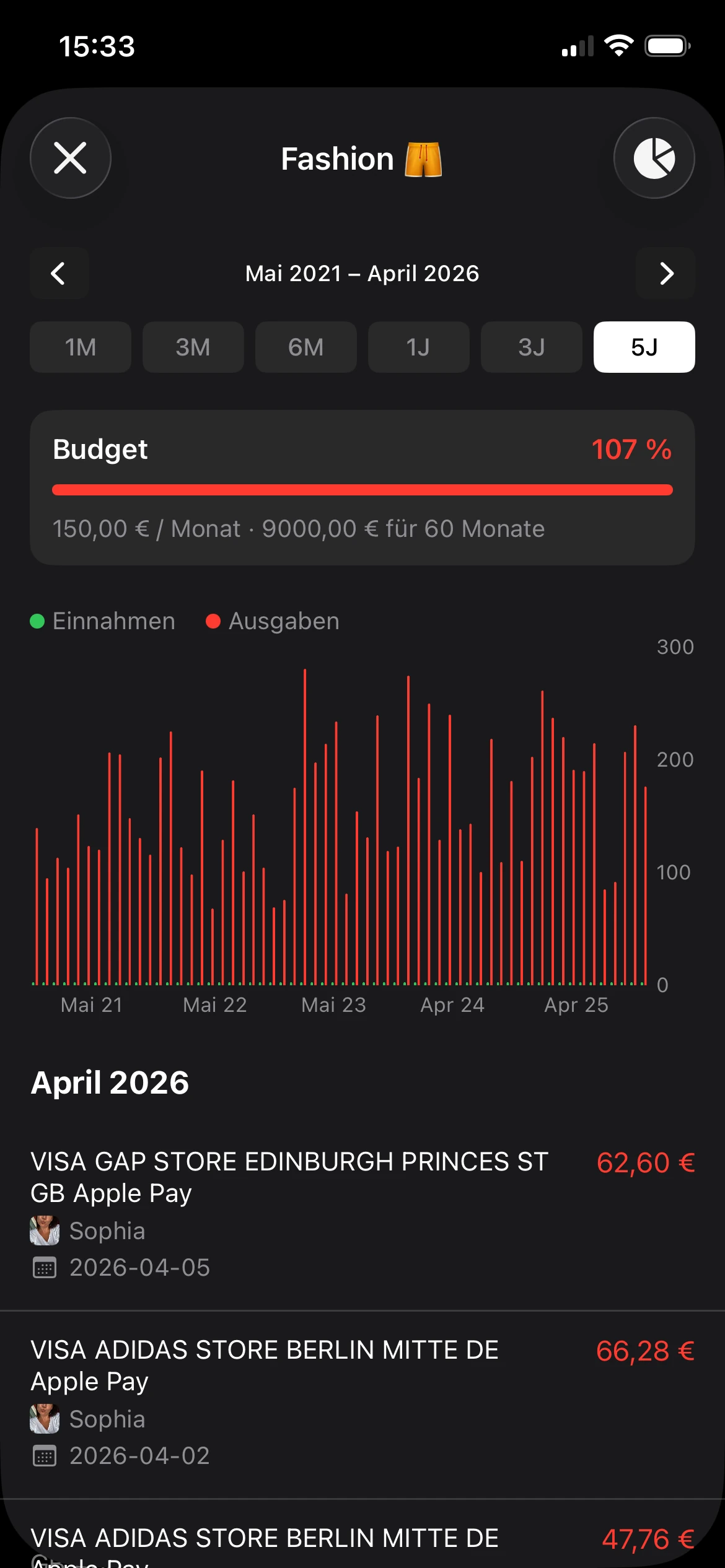
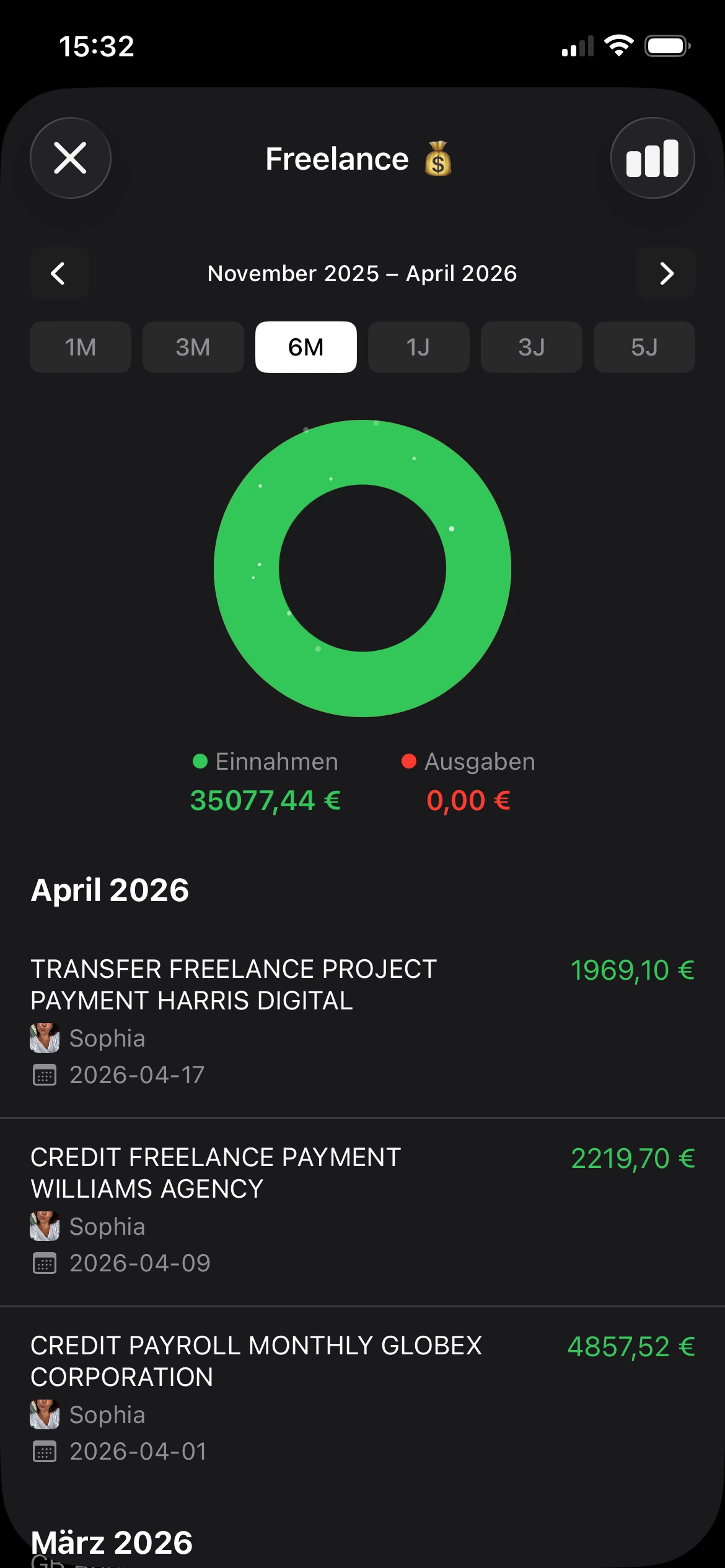
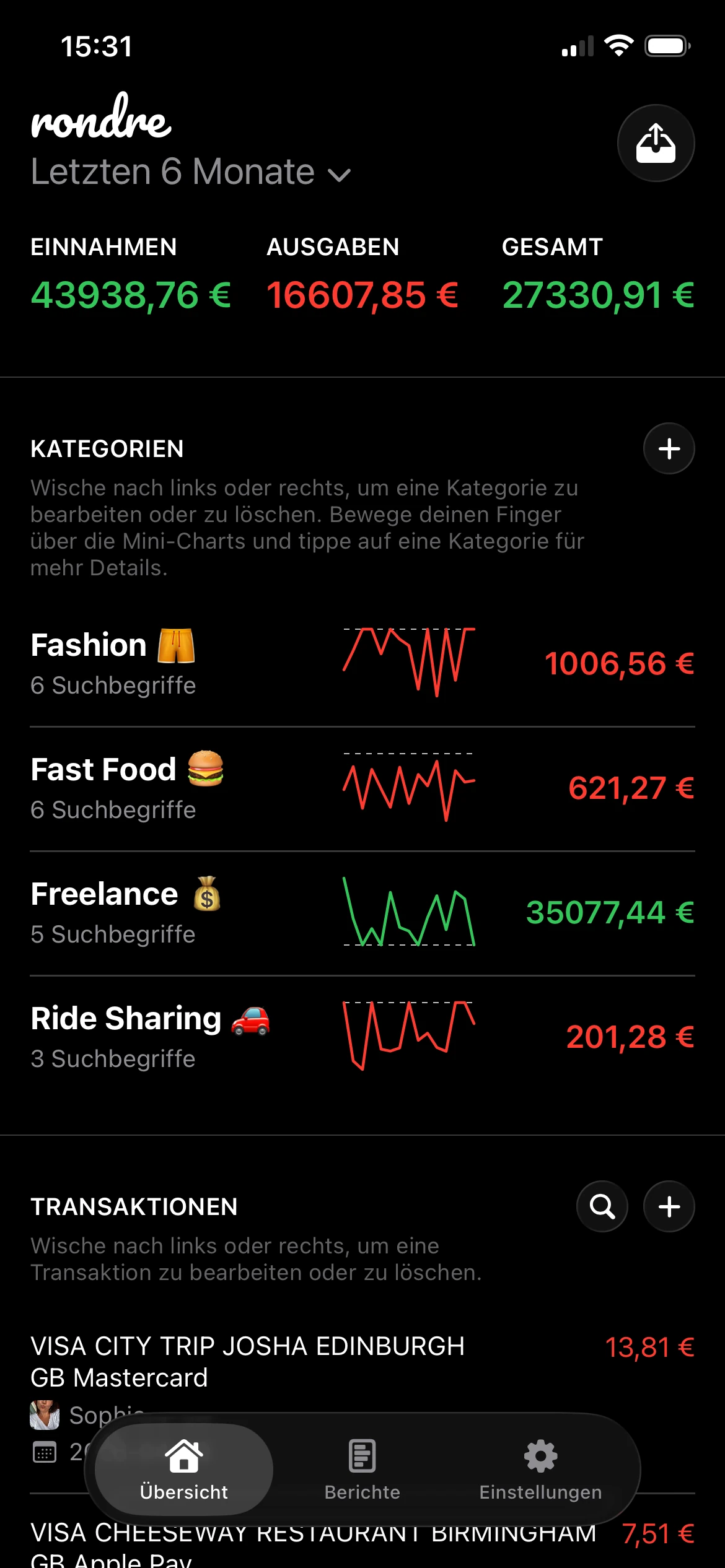
Eine praktische Option ist eine kostenlose persönliche Finanz-App für iPhone, mit der Nutzer Einnahmen und Ausgaben verfolgen, CSV-Dateien und PDF-Kontoauszüge importieren, Transaktionen durchsuchen und ein Haushaltsbuch mit Partner oder Familie teilen können. Für jemanden, der eine Miles & More Kreditkarte verwaltet, kann diese Art von separater Prüfung es leichter machen, ungewöhnliche Buchungen zu erkennen, ohne sich vollständig auf die Bankoberfläche zu verlassen.
Sicherheit verbessert sich, wenn die Transaktionsprüfung zur Routine wird – nicht zur Reaktion.
Dein praktisches Fazit für heute
Der mit Abstand nützlichste Schritt ist, die richtige Login-Seite als Lesezeichen zu speichern, nachdem du bestätigt hast, ob die Aufgabe zum Miles & More-Treueprogrammportal oder zum Kreditkartenportal gehört. Allein dieser eine Schritt beseitigt eine überraschende Menge an Reibung.
Der zweite Schritt: Teste die Wiederherstellung, bevor sie dringend wird. Öffne den Browser-Login, bestätige, welcher Benutzername oder welche E-Mail zum Konto gehört, und stelle sicher, dass du die Passwort-Reset-Optionen an einem ruhigen Tag verstehst – nicht erst während einer Sperrung.
Dann mach die Transaktionsprüfung zur Gewohnheit. Schon ein kurzer wöchentlicher Scan der Kartenaktivität kann Fehler, verdächtige Buchungen oder Abrechnungsprobleme früher aufdecken.
Wenn das Organisieren von Kartentransaktionen komplizierter wirkt als der Login sein sollte, bietet rondre iPhone-Nutzern eine private Möglichkeit, Ausgaben zu verfolgen, CSV-Dateien und PDF-Auszüge zu importieren, Transaktionen sofort zu durchsuchen und ein Haushaltsbuch mit Partner oder Familie zu teilen – ganz ohne Konto, Werbung oder Tracking.